Ⅰ. 插件描述
The best flat theme for Vim, Atom, Sublime Text, Jetbrains Editors, Terminal.app, iTerm, Xcode and XTermⅡ. 基本信息
|
Ⅲ. 安装方法
使用Vundle管理器安装
在你的.vimrc下添加:Plugin 'raphamorim/lucario':source %
:PluginInstall对于Vundle版本 < 0.10.2,请用上面的Bundle替换Plugin。
使用NeoBundle管理器安装
在你的.vimrc下添加:NeoBundle 'raphamorim/lucario':source %
:NeoBundleInstall使用VimPlug管理器安装
在你的.vimrc下添加:Plug 'raphamorim/lucario':source %
:PlugInstall使用Pathogen管理器安装
在终端中运行以下命令:cd ~/.vim/bundle
git clone https://github.com/raphamorim/lucarioⅣ. 文档说明

The best colorful flat theme for your favorite editor and terminal emulator.
Contents
- Color Palette
Editors
Terminal Emulators
Others
- Contributing
- About
Color Palette
| Palette | Hex | RGB | HSL | Sample |
|---|---|---|---|---|
| Background | #2b3e50 | 43 62 80 | 209.2° 30.1% 24.1% |  |
| Current Line | #243443 | 36 52 67 | 209° 30.1% 20.2% |  |
| Selection | #19242f | 25 36 47 | 210° 30.6% 14.1% |  |
| Foreground | #f8f8f2 | 248 248 242 | 60° 30% 96% |  |
| Comment | #5c98cd | 92 152 205 | 208.1° 53.1% 58.2% |  |
| String | #e6db74 | 230 219 116 | 54.2° 69.5% 67.8% |  |
Editors
Atom

- Go to Atom -> Preferences...
- Then select the Install tab
- Switch to the Themes
- Type Lucario in the search box
See Lucario in atom.io page
Jetbrains Editors
(Available for IntellijIDEA, Pycharm, Webstorm, PHPStorm and RubyMine)

- Download Intellij/Lucario.jar
- Go to File -> Import Settings.
- In the Import File Location dialog box select your downloaded Intellij/Lucario.jar file.
- In the Select Components to Import dialog box select only Editor Colors as settings to be imported, and click OK.
Sublime Text

Install using Package Control
If you are using Package Control, you can easily
install Lucario via Package Control: Install Package. The package theme is named "Lucario Color Scheme" in the packages list.
Install manually
- Download Lucario.tmTheme
- Open Sublime text and click on Preferences -> Browse Packages
- Select your downloaded Lucario.tmTheme there
Activating the theme
You should be able to select lucario theme by browsing Preferences -> Color Scheme -> Lucario
Visual Studio Code

- Go to View -> Command Palette or press Ctrl+Shift+P
- Then enter Install Extension
- Search for Lucario and install the extension.
- Open Command Palette, enter Preferences: Color Theme and select Lucario
Issues for the VS Code theme are tracked here.
Vim

- Download colors/lucario.vim
- Move the file to the
~/.vim/colors/directory Add the following lines to your vimrc file:
syntax enable
set number
colorscheme lucario
OS X Hint: vim /usr/share/vim/vimrc
Xcode

- Download xcode/Lucario.dvtcolortheme
- Move the file to your Xcode FontAndColorThemes directory
- Reopen your Xcode and click on Xcode -> preferences
- Open Fonts & Colors tab and select lucario as your theme
Hint: run this command to move the Lucario.dvtcolortheme file to your Xcode FontAndColorThemes directory:
$ mv Lucario.dvtcolortheme ~/Library/Developer/Xcode/UserData/FontAndColorThemes/Terminal Emulators
GNOME Terminal

Since it is not possible to add color themes to GNOME Terminal, the provided script will create a new Profile which uses custom colors.
- Download gnome-terminal/lucario.sh
- Run the script from within GNOME Terminal (
./lucario.sh) - Right-click in the Terminal and select Profiles -> Lucario
- In the main menu select Edit -> Preferences
- Go to the Profiles tab and in the dropdown list for the default profile
select Lucario
The script was created with terminal.sexy.
iTerm

- Download iterm/Lucario.itermcolors
- Open Settings in iTerm
- Go to Profiles -> Colors tab
- Click Load Presets... to import and select the
Lucario.itermcolorsfile
Terminal.app

- Download terminal/Lucario.terminal
- Open Settings in Terminal
- Click "Gear" icon
- Click Import and select the
Lucario.terminalfile - Click Default
Termux

- Make sure that Termux:Styling add-on is installed.
- Download termux/lucario.colors
- Move the
lucario.colorsfile to~/.termux/colors. - Run the
colors.shscript to apply.
Xfce Terminal
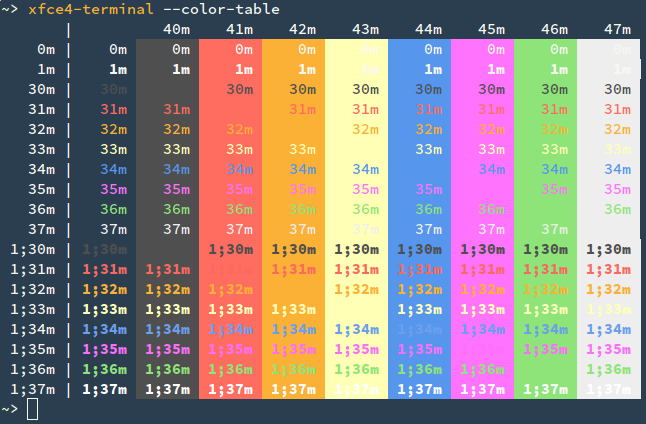
- Save xfce4-terminal/lucario.theme to
$HOME/.local/share/xfce4/terminal/colorschemes/(You might need to create this folder first.) - In Xfce Terminal open Preferences, go to the Colors tab and under Presets select Lucario.
XTerm

- Download xterm/.Xresources
- Either move the
.Xresourcesfile to your home directory or add the contents to your existing~/.Xresources - Run
xrdb -merge ~/.Xresources - (optional) Add
xrdb -merge ~/.Xresourcesto your init scripts (e.g..xinitrc)
Others
CSS

- Download CSS/lucario.css
- Move the CSS/lucario.css file to your web directory
Include the stylesheet in your HTML by including the line
<link rel="stylesheet" type="text/css" href="lucario.css">- The default stylesheet with highlight code blocks is rendered with the class highlight.
Contributing
Want to use Lucario Color Scheme for your favorite editor, but it doesn't exist?
So how about creating one? It's very simple! o/
- Fork it!
- Create your feature branch:
git checkout -b my-new-feature - Commit your changes:
git commit -m 'Add some feature'` - Push to the branch:
git push origin my-new-feature - Submit a pull request :)
About
Credits: Project inspired by @zenorocha's Dracula Theme.
License: MIT © Raphael Amorim.