Ⅰ. 插件描述
Fuzzy Finder in rust!Ⅱ. 基本信息
|
Ⅲ. 安装方法
使用Vundle管理器安装
在你的.vimrc下添加:Plugin 'lotabout/skim':source %
:PluginInstall对于Vundle版本 < 0.10.2,请用上面的Bundle替换Plugin。
使用NeoBundle管理器安装
在你的.vimrc下添加:NeoBundle 'lotabout/skim':source %
:NeoBundleInstall使用VimPlug管理器安装
在你的.vimrc下添加:Plug 'lotabout/skim':source %
:PlugInstall使用Pathogen管理器安装
在终端中运行以下命令:cd ~/.vim/bundle
git clone https://github.com/lotabout/skimⅣ. 文档说明


Life is short, skim!
Half of our life is spent on navigation: files, lines, commands… You need skim!
It is a general fuzzy finder that saves you time.
It is blazingly fast as it reads the data source asynchronously.

skim provides a single executable: sk. Basically anywhere you would want to usegrep, try sk instead.
Table of contents
Installation
skim project contains several components:
skexecutable -- the core.sk-tmux-- script for launchingskin a tmux pane.- Vim/Nvim plugin -- to call
skinside Vim/Nvim. check skim.vim for more Vim support.
Linux
On Fedora
dnf install skimOn Alpine
apk add skimOn Arch
pacman -S skimFrom sources
Clone this repository and run the install script:
git clone --depth 1 git@github.com:lotabout/skim.git ~/.skim
~/.skim/install
Next, add ~/.skim/bin to your PATH by putting the following line into your ~/.bashrc:
export PATH="$PATH:$HOME/.skim/bin"From binary
As an alternative, you can directly [download the sk
executable](https://github.com/lotabout/skim/releases), but extra utilities are recommended.
OSX
Using Homebrew:
brew install skBut the Linux way described above will also work.
Install from crates.io
cargo install skimInstall as Vim plugin
Once you have cloned the repository, add the following line to your .vimrc:
set rtp+=~/.skimOr you can have vim-plug manage skim (recommended):
Plug 'lotabout/skim', { 'dir': '~/.skim', 'do': './install' }Build Manually
Clone the repo and run:
cargo installAlternatively, run:
cargo build --releasethen put the resulting target/release/sk executable on your PATH.
Usage
skim can be used as a general filter(like grep) or as an interactive
interface for invoking commands.
As filter
Try the following
# directly invoke skim
sk

# or pipe some input to it: (press TAB key select multiple items with -m enabled)
vim $(find . -name "*.rs" | sk -m)
The above command will allow you to select files with ".rs" extension and open
the ones you selected in Vim.
As Interactive Interface
skim can invoke other commands dynamically. Normally you would want to
integrate it with grep,
ack,
ag, or
rg for searching contents in a
project directory:
# works with grep
sk --ansi -i -c 'grep -rI --color=always --line-number "{}" .'
# works with ack
sk --ansi -i -c 'ack --color "{}"'
# works with ag
sk --ansi -i -c 'ag --color "{}"'
# works with rg
sk --ansi -i -c 'rg --color=always --line-number "{}"'
Key Bindings
Some commonly used keybindings:
| Key | Action |
|---|---|
| Enter | Accept (select current one and quit) |
| ESC/Ctrl-G | Abort |
| Ctrl-P/Up | Move cursor up |
| Ctrl-N/Down | Move cursor Down |
| TAB | Toggle selection and move down (with -m) |
| Shift-TAB | Toggle selection and move up (with -m) |
Search Syntax
skim borrowed fzf's syntax for matching items:
| Token | Match type | Description |
|---|---|---|
text | fuzzy-match | items that match text |
^music | prefix-exact-match | items that start with music |
.mp3$ | suffix-exact-match | items that end with .mp3 |
'wild | exact-match (quoted) | items that include wild |
!fire | inverse-exact-match | items that do not include fire |
!.mp3$ | inverse-suffix-exact-match | items that do not end with .mp3 |
skim also supports the combination of tokens.
- Whitespace has the meaning of
AND. With the termsrc main,skimwill search
for items that match bothsrcandmain. |meansOR(note the spaces around|). With the term `.md$ |
.markdown$,skimwill search for items ends with either.md` or.markdown.ORhas higher precedence. Soreadme .md$ | .markdown$is grouped intoreadme AND (.md$ OR .markdown$).
In case that you want to use regular expressions, skim provides regex mode:
sk --regexYou can switch to regex mode dynamically by pressing Ctrl-R (Rotate Mode).
exit code
| Exit Code | Meaning |
|---|---|
| 0 | Exit normally |
| 1 | No Match found |
| 130 | Abort by Ctrl-C/Ctrl-G/ESC/etc... |
Customization
The doc here is only a preview, please check the man page(man sk) for full
list of options.
Keymap
Specify the bindings with comma seperated pairs(no space allowed), example:
sk --bind 'alt-a:select-all,alt-d:deselect-all'Additionaly, use + to concatenate actions, such as execute-silent(echo {} | pbcopy)+abort.
See the KEY BINDINGS section of the man page for details.
Sort Criteria
There are four sort keys for results: score, index, begin, end, you can
specify how the records are sorted by sk --tiebreak score,index,-begin or any
other order you want.
Color Scheme
It is a high chance that you are a better artist than me. Luckily you won't
be stuck with the default colors, skim supports customization of the color scheme.
--color=[BASE_SCHEME][,COLOR:ANSI]The configuration of colors starts with the name of the base color scheme,
followed by custom color mappings. For example:
sk --color=current_bg:24
sk --color=light,fg:232,bg:255,current_bg:116,info:27
See --color option in the man page for details.
Misc
--ansi: to parse ANSI color codes(e.g\e[32mABC) of the data source--regex: use the query as regular expression to match the data source
Advanced Topics
Interactive mode
With "interactive mode", you could invoke command dynamically. Try out:
sk --ansi -i -c 'rg --color=always --line-number "{}"'How it works?
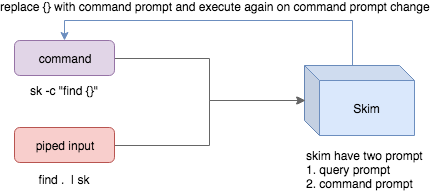
- Skim could accept two kinds of source: command output or piped input
- Skim have two kinds of prompt: query prompt to specify the query pattern,
command prompt to specify the "arguments" of the command -cis used to specify the command to execute while defaults toSKIM_DEFAULT_COMMAND-iis to tell skim open command prompt on startup, which will showc>by default.
If you want to further narrow down the result returned by the command, pressCtrl-Q to toggle interactive mode.
Executing external programs
You can set up key bindings for starting external processes without leaving skim (execute, execute-silent).
# Press F1 to open the file with less without leaving skim
# Press CTRL-Y to copy the line to clipboard and aborts skim (requires pbcopy)
sk --bind 'f1:execute(less -f {}),ctrl-y:execute-silent(echo {} | pbcopy)+abort'
Preview Window
This is a great feature of fzf that skim borrows. For example, we use 'ag' to
find the matched lines, once we narrow down to the target lines, we want to
finally decide which lines to pick by checking the context around the line.grep and ag has an option --context, skim can do better with preview
- For example:
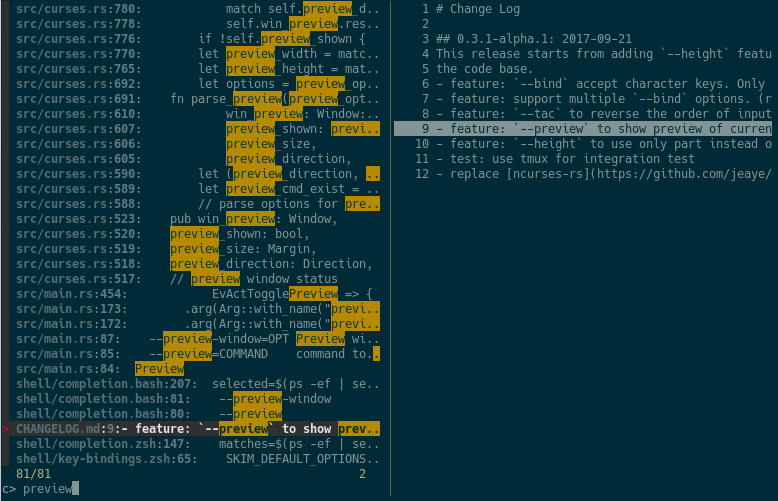
sk --ansi -i -c 'ag --color "{}"' --preview "preview.sh {}"(Note the preview.sh is a script to print the context given filename:lines:columns)
You got things like this:
How does it work?
If the preview command is given by the --preview option, skim will replace the{} with the current highlighted line surrounded by single quotes, call the
command to get the output, and print the output on the preview window.
Sometimes you don't need the whole line for invoking the command. In this case
you can use {}, {1..}, {..3} or {1..5} to select the fields. The
syntax is explained in the section "Fields Support".
Last, you might want to configure the position of preview windows, use--preview-window.
--preview-window up:30%to put the window in the up position with height
30% of the total height of skim.--preview-window left:10:wrap, to specify thewrapallows the preview
window to wrap the output of the preview command.--preview-window wrap:hiddento hide the preview window at startup, later
it can be shown by the actiontoggle-preview.
Fields support
Normally only plugin users need to understand this.
For example, you have the data source with the format:
<filename>:<line number>:<column number>However, you want to search <filename> only when typing in queries. That
means when you type 21, you want to find a <filename> that contains 21,
but not matching line number or column number.
You can use sk --delimiter ':' --nth 1 to achieve this.
Also you can use --with-nth to re-arrange the order of fields.
Range Syntax
<num>-- to specify thenum-th fields, starting with 1.start..-- starting from thestart-th fields, and the rest...end-- starting from the0-th field, all the way toend-th field,
includingend.start..end-- starting fromstart-th field, all the way toend-th
field, includingend.
Use as a library
Skim can be used as a library in your Rust crates.
First, add skim into your Cargo.toml:
[dependencies]
skim = "0.7.0"
Then try to run this simple example:
extern crate skim;
use skim::prelude::*;
use std::io::Cursor;

pub fn main() {
    let options = SkimOptionsBuilder::default()
        .height(Some("50%"))
        .multi(true)
        .build()
        .unwrap();

    let input = "aaaaa\nbbbb\nccc".to_string();

    // `SkimItemReader` is a helper to turn any `BufRead` into a stream of `SkimItem`
    // `SkimItem` was implemented for `AsRef<str>` by default
    let item_reader = SkimItemReader::default();
    let items = item_reader.of_bufread(Cursor::new(input));

    // `run_with` would read and show items from the stream
    let selected_items = Skim::run_with(&options, Some(items))
        .map(|out| out.selected_items)
        .unwrap_or_else(|| Vec::new());

    for item in selected_items.iter() {
        print!("{}: {}{}", item.get_index(), item.get_output_text(), "\n");
    }
}
Given an Option<SkimItemReceiver>, skim will read items accordingly, do its
job and bring us back the user selection including the selected items(with
their indices), the query, etc. Note that:
SkimItemReceiveriscrossbeam::channel::Receiver<Arc<dyn SkimItem>>- If it is none, it will invoke the given command and read items from command output
- Otherwise, it will read the items from the (crossbeam) channel.
Trait SkimItem is provided to customize how a line could be displayed,
compared and previewed. It is implemented by default for AsRef<str>
Plus, SkimItemReader is a helper to convert a BufRead intoSkimItemReceiver (we can easily turn a File for String into BufRead).
So that you could deal with strings or files easily.
Check more examples under examples/ directory.
FAQ
How to ignore files?
Skim invokes find . to fetch a list of files for filtering. You can override
that by setting the environment variable SKIM_DEFAULT_COMMAND. For example:
$ SKIM_DEFAULT_COMMAND="fd --type f || git ls-tree -r --name-only HEAD || rg --files || find ."
$ sk
You could put it in your .bashrc or .zshrc if you like it to be default.
Some files are not shown in Vim plugin
If you use the Vim plugin and execute the :SK command, you might find some
of your files not shown.
As described in #3, in the Vim
plugin, SKIM_DEFAULT_COMMAND is set to the command by default:
let $SKIM_DEFAULT_COMMAND = "git ls-tree -r --name-only HEAD || rg --files || ag -l -g \"\" || find ."That means the files not recognized by git will not shown. Either override the
default with let $SKIM_DEFAULT_COMMAND = '' or find the missing file by
yourself.
Difference to fzf
fzf is a command-line fuzzy finder written
in Go and skim tries to implement a new one
in Rust!
This project is written from scratch. Some decisions of implementation are
different from fzf. For example:
- The fuzzy search algorithm is different.
- ~~UI of showing matched items.
fzfwill show only the range matched while
skimwill show each character matched.~~ (fzf has this now) skimhas an interactive mode.skim's range syntax is git style
How to contribute
Create new issues if you meet any bugs
or have any ideas. Pull requests are warmly welcomed.