Ⅰ. 插件描述
Solarized color settings for Windows command promptⅡ. 基本信息
|
Ⅲ. 安装方法
使用Vundle管理器安装
在你的.vimrc下添加:Plugin 'neilpa/cmd-colors-solarized':source %
:PluginInstall对于Vundle版本 < 0.10.2,请用上面的Bundle替换Plugin。
使用NeoBundle管理器安装
在你的.vimrc下添加:NeoBundle 'neilpa/cmd-colors-solarized':source %
:NeoBundleInstall使用VimPlug管理器安装
在你的.vimrc下添加:Plug 'neilpa/cmd-colors-solarized':source %
:PlugInstall使用Pathogen管理器安装
在终端中运行以下命令:cd ~/.vim/bundle
git clone https://github.com/neilpa/cmd-colors-solarizedⅣ. 文档说明
Solarized - Command Prompt theme
This is a Solarized color scheme for the Windows command prompt,
with contributions by Neil Pankey, Ryan Beesley, Scott Hanselman,
Russell West, and Paul Hampson.
See the Solarized home page for screenshots and more details,
as well as color schemes for other applications. To contribute or file bug
reports or issues, please visit the GitHub repo for this port,
or the main Solarized repository.
Inspired by this post
Making Solarized work for cmd.exe, Bash on Ubuntu on Windows, and PowerShell,
and striking a balance with how other Solarized projects are implemented
presents some challenges. The following table shows how the colors are mapped.
| SOLARIZED | HEX | ANSI | TERMCOL | cmd.exe | PowerShell | ColorTable | DWORD |
|---|---|---|---|---|---|---|---|
| base03 | #002b36 | ESC[0;30m | brblack | Black | Black | 00 | 00362b00 |
| base02 | #073642 | ESC[1;30m | black | Gray | DarkGray | 08 | 00423607 |
| base01 | #586e75 | ESC[0;32m | brgreen | Green | DarkGreen | 02 | 00756e58 |
| base00 | #657b83 | ESC[0;33m | bryellow | Yellow | DarkYellow | 06 | 00837b65 |
| base0 | #839496 | ESC[0;34m | brblue | Blue | DarkBlue | 01 | 00969483 |
| base1 | #93a1a1 | ESC[0;36m | brcyan | Aqua | DarkCyan | 03 | 00a1a193 |
| base2 | #eee8d5 | ESC[0;37m | white | White | Gray | 07 | 00d5e8ee |
| base3 | #fdf6e3 | ESC[1;37m | brwhite | BrightWhite | White | 15 | 00e3f6fd |
| yellow | #b58900 | ESC[1;33m | yellow | LightYellow | Yellow | 14 | 000089b5 |
| orange | #cb4b16 | ESC[0;31m | brred | Red | DarkRed | 04 | 00164bcb |
| red | #dc322f | ESC[1;31m | red | LightRed | Red | 12 | 002f32dc |
| magenta | #d33682 | ESC[1;35m | magenta | LightPurple | Magenta | 13 | 008236d3 |
| violet | #6c71c4 | ESC[0;35m | brmagenta | Purple | DarkMagenta | 05 | 00c4716c |
| blue | #268bd2 | ESC[1;34m | blue | LightBlue | Blue | 09 | 00d28b26 |
| cyan | #2aa198 | ESC[1;36m | cyan | LightAqua | Cyan | 11 | 0098a12a |
| green | #859900 | ESC[1;32m | green | LightGreen | Green | 10 | 00009985 |
To make sure that the terminal is likely to use the best matching, the
ColorTable is aligned with TERMCOL values. These values were pulled from PuTTY
and other Solarized terminal profiles. This allows the same ANSI escape
sequences to show the same in ANSI supported terminals. The PowerShell default
colors are also matched for the $Host.PrivateData and PSReadLine to make them
seemingly fit with the rest of the environments.
WARNING
Below are very simplified installation instructions. ~~It will not update
existing shortcuts because they have their own color mapping.~~ With this
latest version of the project, it is possible to apply to existing shortcuts,
but it will not be easy to revert that change. It will not always play
nice with traditional unix tools or compatability shims because Windows uses a
fundamentally different color code mapping.
Installation
Update Registry for Console
While this was the original process, this only changes the registry default
and doesn't update the Command Prompt and PowerShell defaults when you launch
those shortcuts. It is still something you may wish to do, but the recommended
process is now to use the Update-Link utility.
Import the .reg file of choice, e.g. regedit /s solarized-dark.reg.
Both files contain the same palettes, the only difference is the default
foreground and background colors. Therefore you can switch between themes on
the fly with color 01 for dark and color F6 for light.
Update Command Prompt and PowerShell shortcut .lnks
Locate the link you wish to modify, such as Command Prompt. The easiest way to
do this on Windows 10 is to click Start, then type in the command you want to
- When it appears in the list, right-click and select `Open file
location`. This will open an Explorer window and show you the shortcut. Hold
shift and right-click on the shortcut, then select Copy as path. Now open a
Command Prompt to the location of this project. In the Command Prompt window
use this command.
Update-Link "<shortcut.lnk>" [dark|light]
The path to the shortcut.lnk is the same as you copied to your clipboard in the
previous step. To easily paste it in Windows 10, just right-click on the
- If the path has spaces, you will want to wrap it in quotes, but if you
- the recommended way to use
Copy as path, it will be done for you. If
no theme is given, Update-Link will default to Solarized Dark.
Update your PowerShell profile
Copy the Set-Solarized*ColorDefaults.ps1 files to your profile directory,
likely ~\Documents\WindowsPowerShell\. Then add the following line of code
to the end of your Microsoft.PowerShell_profile.ps1 or profile.ps1:
. (Join-Path -Path (Split-Path -Parent -Path $PROFILE) -ChildPath $(switch($HOST.UI.RawUI.BackgroundColor.ToString()){'White'{'Set-SolarizedLightColorDefaults.ps1'}'Black'{'Set-SolarizedDarkColorDefaults.ps1'}default{return}}))
Uninstall
Registry for Console
The file windows-defaults.reg is provided to restore the command prompt
colors back to their shipping defaults. The registry settings have been
checked for versions of Windows back to at least Windows 7 and the values are
the same.
To restore the defaults, import the .reg the same way as you applied it
previously, regedit /s windows-defaults.reg.
Command Prompt and PowerShell shortcut .lnks
Unfortunately, this is not the easiest to revert right now. One way, which is
not recommended for casual users is to edit the Properties of an open window.
From there, you can edit the colors manually, using the table as a guide. If
there is enough interest and demand, a future update may make it possible to
apply other themes using the Update-Link utility, but for now it is not very
easy to revert.
PowerShell profile
You will also want to revert any changes you made to your PowerShell profile.
Just open the profile you created or modified and remove the code.
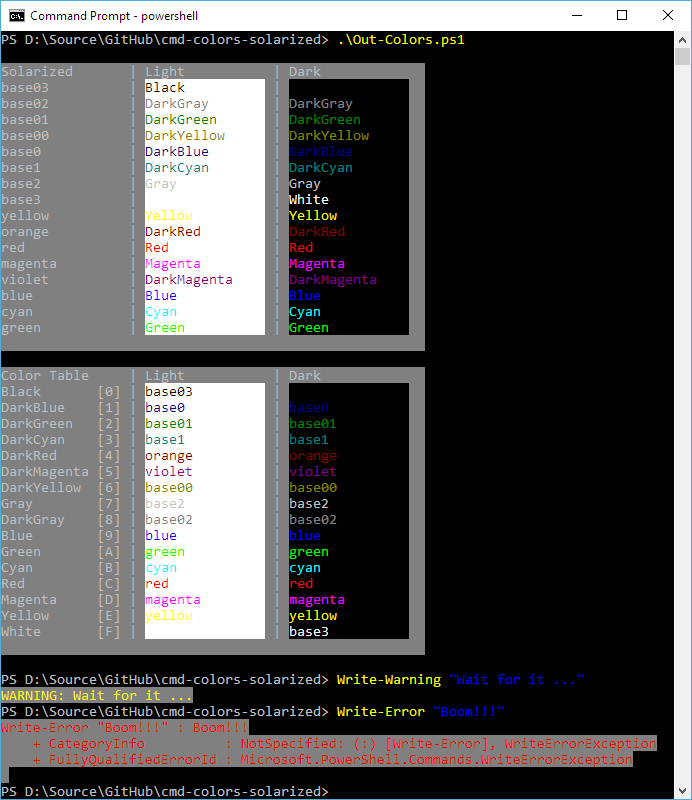
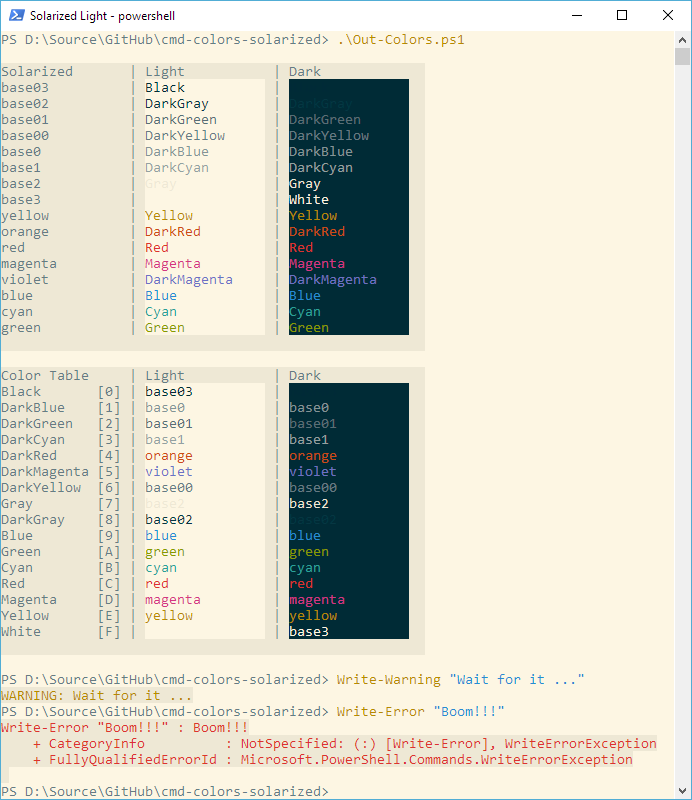
Screenshots
PowerShell Light
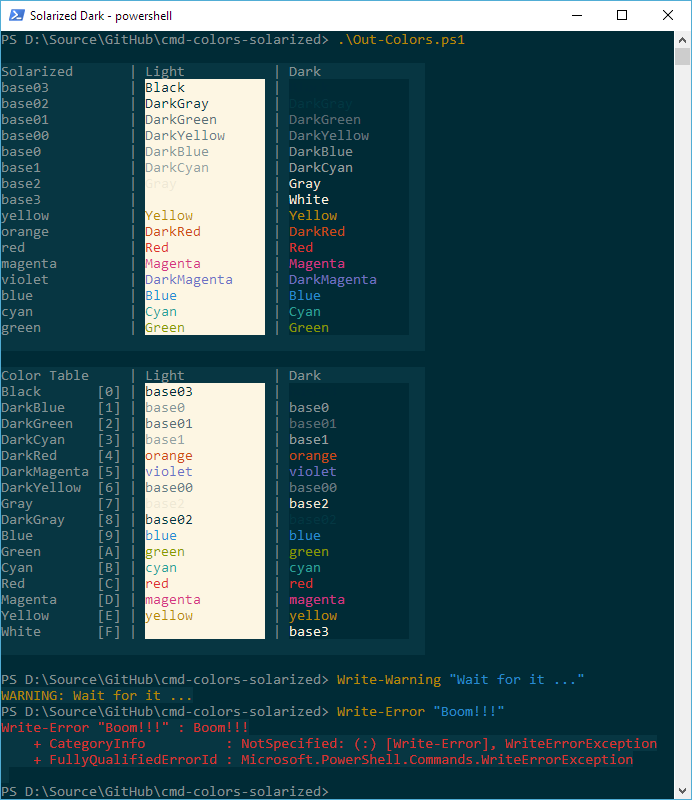
PowerShell Dark
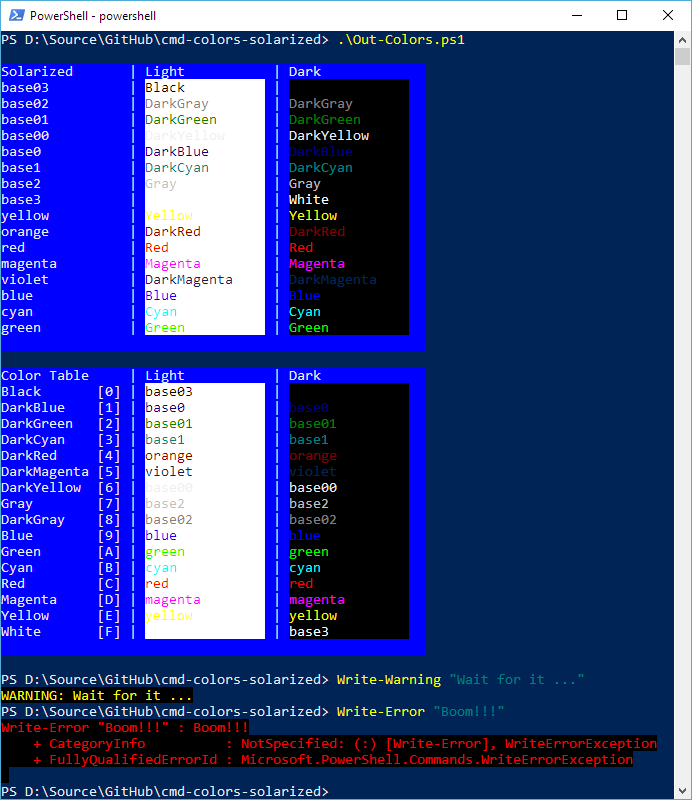
And for comparison purposes:
PowerShell Default
Command Prompt Default