Ⅰ. 插件描述
Read novel, weibo, twitter in vim as CommentⅡ. 基本信息
|
Ⅲ. 安装方法
使用Vundle管理器安装
在你的.vimrc下添加:Plugin 'dyng/commentreader':source %
:PluginInstall对于Vundle版本 < 0.10.2,请用上面的Bundle替换Plugin。
使用NeoBundle管理器安装
在你的.vimrc下添加:NeoBundle 'dyng/commentreader':source %
:NeoBundleInstall使用VimPlug管理器安装
在你的.vimrc下添加:Plug 'dyng/commentreader':source %
:PlugInstall使用Pathogen管理器安装
在终端中运行以下命令:cd ~/.vim/bundle
git clone https://github.com/dyng/commentreaderⅣ. 文档说明
CommentReader
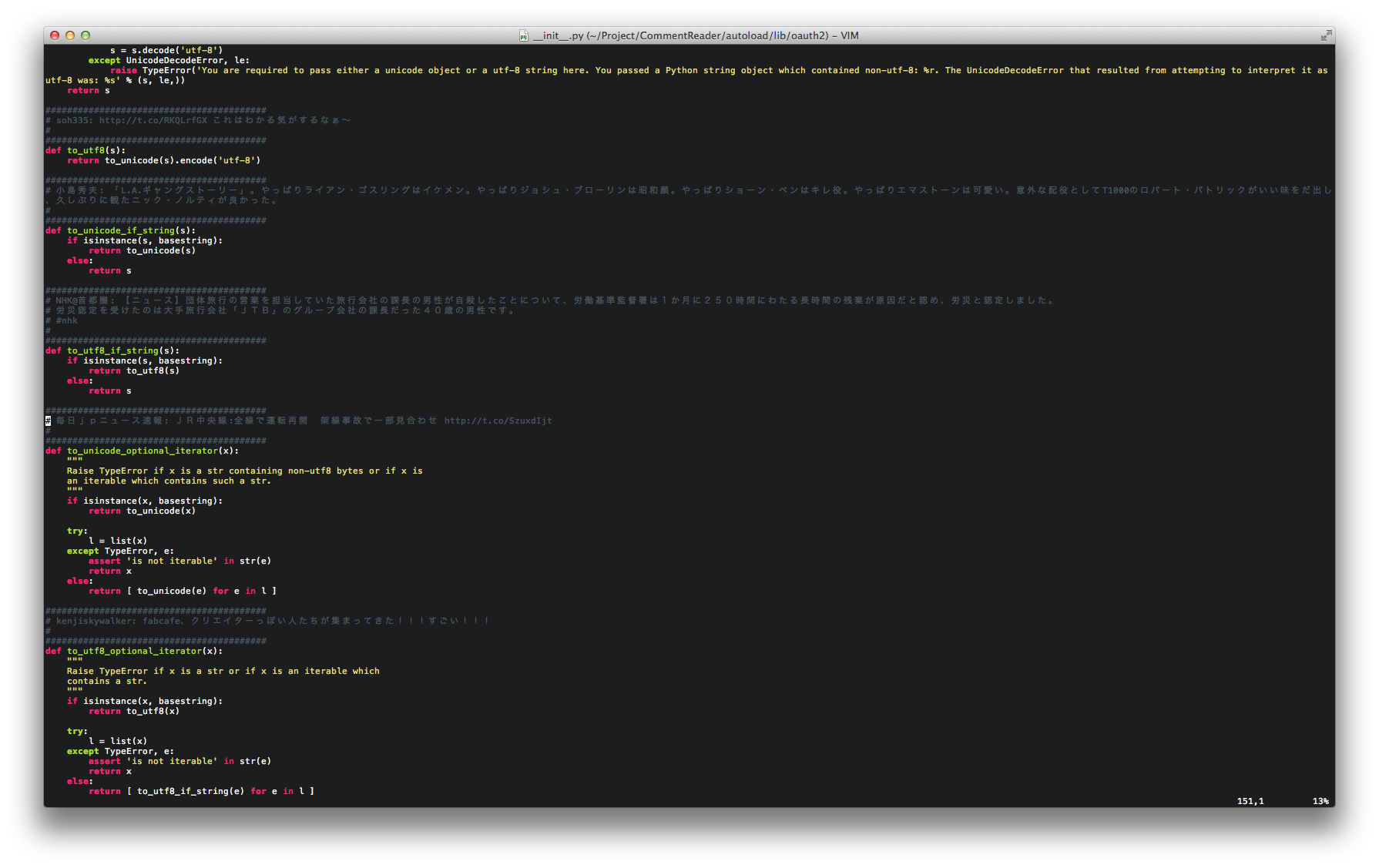
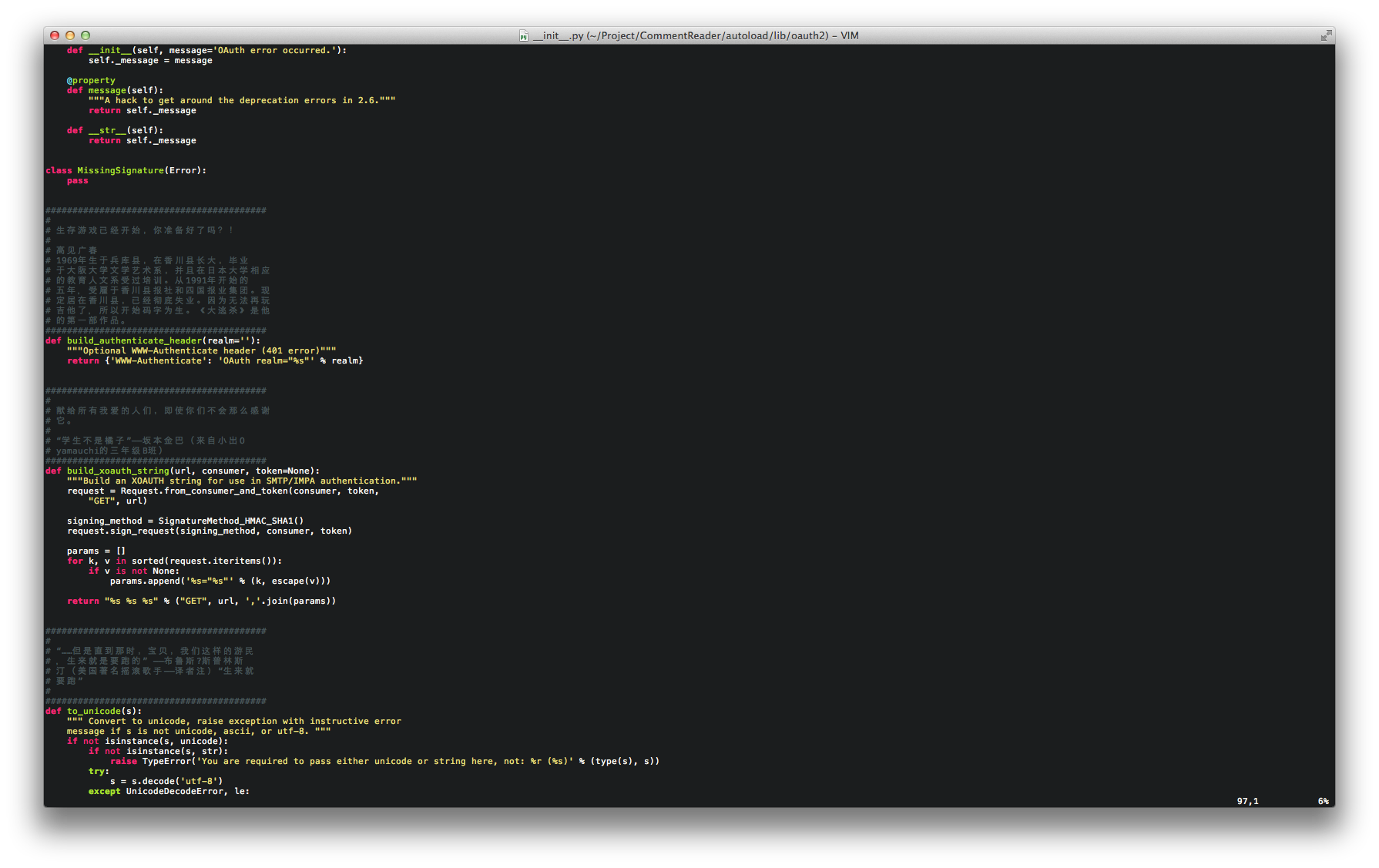
Read your favorite content (twitter, weibo, digital novel, etc.) at work by pretending you are reading source code. :P
Requirements
- Vim 7.3+
- Python support for Vim
Installation
It can be easily installed by just dropping all files to your $HOME/.vim/ directory.
However I recommend using vundle or pathogen instead as managing your vim plugins.
Usage and Configuration
Open a source file and run
:CRopentwitter- If it is the first time you run the command, it will guide you to authorize it. Open the url stored in
+register in your browser. If you are using gVim, you can paste it byCtrl + V(Windows) orCommands + V(Mac) as usual. It should be the twitter authorization page containing a PIN code. Copy it and run
:CRopentwitter <your PIN code>- If everything goes right, the tweets should appear as comments now!
Open a source file and run
:CRopenweibo- It will require your authorization at the first time you run it. Open the url in
+register the same as above. - Copy the last part of redirected url. For example,
17e80a3d4fe458da96f8561ab21d32fefor redirected url ashttps://api.weibo.com/oauth2/default.html?code=17e80a3d4fe458da96f8561ab21d32fe. run
:CRopenweibo <your code>- enjoy!
Novel
Open a source file and run
:CRopenbookIf you haven't opened a book ever, it will require you to give the path to the command as argument. Like
:CRopenbook <path to your file>- Up to now, CommentReader can read plain text file in UTF-8 encoding only.
Maps
- l: next page
- h: previous page
- j: next item
- k: previous item
- r: refresh (for twitter and weibo)
- q: quit
There is also a useful command CRtoggle you can map to the key as you like, <F5> for example.
:nnoremap <F5> :CRtoggle<CR>
Session
By default, CommentReader will save your profile about API key, novel's file path in $HOME/.vim_creader_session. With the profile file, you can run :CRopentwitter, :CRopenweibo, :CRopenbook without argument for easy.
If you want, the profile auto-save can be turned off by adding
let g:creader_auto_save = 0
in your .vimrc.
Or, maybe you don't want to turn it off but just to save the profile in another position, you can. Add
let g:creader_session_file = path/to/you/want
in your .vimrc.
Commands
- CRopenbook
- CRopenweibo
- CRopentwitter
- CRtoggle
- CRrefresh
- CRshow
- CRhide
- CRclose
- CRforward
- CRbackward
- CRnext
- CRprevious
- CRsave
Configs
- g:creader_chars_per_line
- g:creader_lines_per_block
- g:creader_session_file
- g:creader_auto_save
- g:creader_debug_mode
- g:creader_log_file
Snapshots