Ⅰ. 插件描述
ECMAScript beautifier based on eslintⅡ. 基本信息
|
Ⅲ. 安装方法
使用Vundle管理器安装
在你的.vimrc下添加:Plugin 'dai-shi/es-beautifier':source %
:PluginInstall对于Vundle版本 < 0.10.2,请用上面的Bundle替换Plugin。
使用NeoBundle管理器安装
在你的.vimrc下添加:NeoBundle 'dai-shi/es-beautifier':source %
:NeoBundleInstall使用VimPlug管理器安装
在你的.vimrc下添加:Plug 'dai-shi/es-beautifier':source %
:PlugInstall使用Pathogen管理器安装
在终端中运行以下命令:cd ~/.vim/bundle
git clone https://github.com/dai-shi/es-beautifierⅣ. 文档说明
# 


ECMAScript beautifier based on eslint
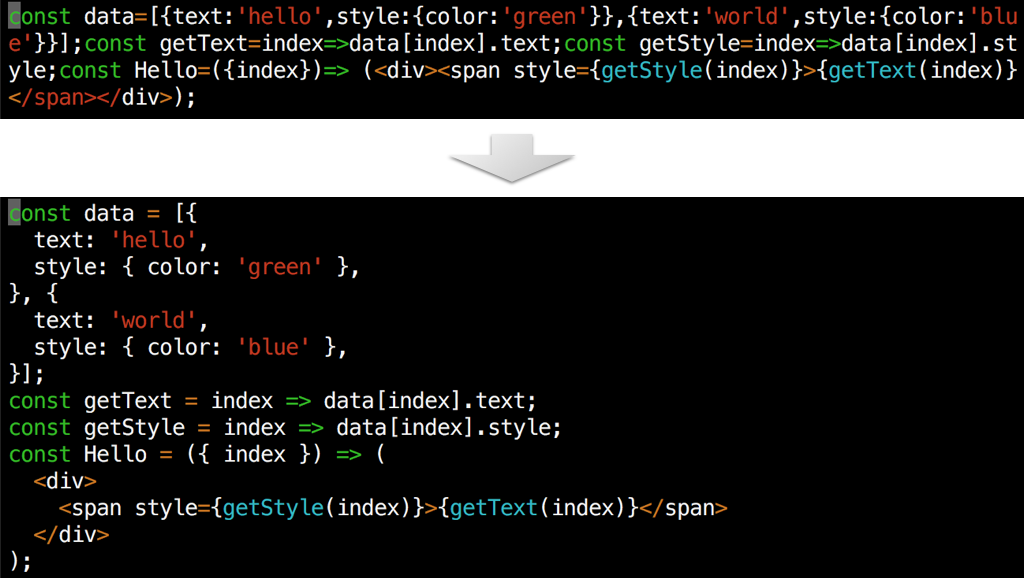
Motivation
JS Beautifier is so great that it can reduce formatting issues, however,
there are two major issues: a) customization and b) ES.next.
a) If you like the result of code generated by JS Beautifier,
it's just fine, but if you can't manage with its configuration options,
you are out of luck.
b) If you are using a new ECMAScript feature or features that are not
even standardized, you are also out of luck, because the parser
does not support the features. Among such is JSX.
ESLint is a linting tool widely used, which adopts a pluggable
architecture so that it's highly customizable.
It also has an ability to automatically fix problems.
There's lots of plugins developed, forming a big ecosystem.
So, why not build a beautifying tool using eslint?
Usage (CLI)
Install
npm install es-beautifier -g --only=productiones-beautifier --helpExample
es-beautifier < file.js > file-beautified.jses-beautifier file-to-be-beautified.jsUsage (Vim)
Example with NeoBundle
NeoBundle 'dai-shi/es-beautifier', {'rtp': 'contrib/vim', 'external_commands': 'node', 'build_commands': 'npm', 'build': {'others': 'npm install --only=production'}}
autocmd FileType javascript nnoremap <buffer> <Leader>e :call EsBeautifier()<cr>
autocmd FileType javascript vnoremap <buffer> <Leader>e :call RangeEsBeautifier()<cr>
Usage (Atom)
https://atom.io/packages/es-beautifier
Toggle the Command Palette and enter "es-beautifier".
For the long term use, you might want to configure keybindings, for example:
'atom-text-editor':
  'shift-cmd-e': 'es-beautifier'
If you want to use your eslintrc files do the following, but please be reminded
that it may conflict with the beautifier rule and may cause unexpected behavior.
'es-beautifier':
  'useEslintrc': true
Usage (Visual Studio Code)
ext install vscode-es-beautifierOpen the Change Language Mode (Cmd-K M / Ctrl-K M) and select "es-beautifier".
You can format code just like the original formatter.
For the long term use, you might want to configure it in settings.json:
{
  "files.associations": {"*.js":"es-beautifier"}
}
If you want to use your eslintrc files add the following, but please be reminded
that it may conflict with the beautifier rule and may cause unexpected behavior.
"[es-beautifier]": {
  "useEslintrc": true
}
Usage (eslint-plugin)
You can customize it just like a normal eslint plugin.
Install
In your project directory:
npm install eslint eslint-plugin-es-beautifier --save-devExample
Add the following to your .eslintrc or eslintConfig in package.json.
{
  "plugins": [
    "es-beautifier"
  ],
  "extends": [
    "plugin:es-beautifier/standard"
  ]
}
Add the following scripts in package.json.
{
  "scripts": {
    "beautify": "eslint --fix ."
  }
}
Run:
npm run beautifySimilar projects
There are several tools that do smiliar to what es-beautifier does.
To see the comparison:
git clone https://github.com/dai-shi/es-beautifier.git
cd es-beautifier
npm install
npm run examples
Here's more intuitive (biased) comparison in table:
| js-beautify | uglify-js | esformatter | prettydiff | es-beautifier | prettier | |
|---|---|---|---|---|---|---|
| ES2015 Parser | Own | Own | Esprima | Own | Espree | Babylon |
| Customization | Limited | No | Plugin | Somewhat | Plugin | Limited |
| Comments | OK | Removed | OK | OK | OK | OK |
| JSX Support | No | Error | No | Limited | Yes | Yes |
| Array in array | Yes | No | No | Wierd | Yes | Yes |
| Execution Time | Short | Short | Long | Short | Long | Short |
| Completion | Mature | Good | Young | Good | Young | Active |