Ⅰ. 插件描述
Comment/uncomment lines efficiently. Like Nerd Commenter in VimⅡ. 基本信息
|
Ⅲ. 安装方法
使用Vundle管理器安装
在你的.vimrc下添加:Plugin 'redguardtoo/evil-nerd-commenter':source %
:PluginInstall对于Vundle版本 < 0.10.2,请用上面的Bundle替换Plugin。
使用NeoBundle管理器安装
在你的.vimrc下添加:NeoBundle 'redguardtoo/evil-nerd-commenter':source %
:NeoBundleInstall使用VimPlug管理器安装
在你的.vimrc下添加:Plug 'redguardtoo/evil-nerd-commenter':source %
:PlugInstall使用Pathogen管理器安装
在终端中运行以下命令:cd ~/.vim/bundle
git clone https://github.com/redguardtoo/evil-nerd-commenterⅣ. 文档说明
- evil-nerd-commenter
[https://travis-ci.org/redguardtoo/evil-nerd-commenter]
[http://melpa.org/#/evil-nerd-commenter]
[http://stable.melpa.org/#/evil-nerd-commenter]
This program can be used WITHOUT [http://www.emacswiki.org/Evil]!
A [http://www.vim.org/scripts/script.php?script_id=1218] emulation, help you comment code efficiently. For example, you can press key =,,99j= or =99,ci= to comment out 99 lines.
I recommend using it with Evil though Evil is optional.
Tested on Emacs 24.4, 24.5, 25.3, 26.1
- Why?
** A simple use case on the efficiency
If you want to comment out nine lines. Instead pressing =C-space M-9 C-n M-;=, now you can press =M-9 M-;= or =,,9j= or =9,ci=.
The point is that you need NOT mark any text to comment line(s)!
So you strike less keys than the original =M-x comment-dwim=.
demo:
[[https://raw.github.com/redguardtoo/evil-nerd-commenter/master/evil-nerd-commenter-demo.gif]]
** It fixes Emacs bug for you
I'll provide long-term support for ANY language in the future. Here is an example how I work around [https://github.com/redguardtoo/evil-nerd-commenter/issues/3].
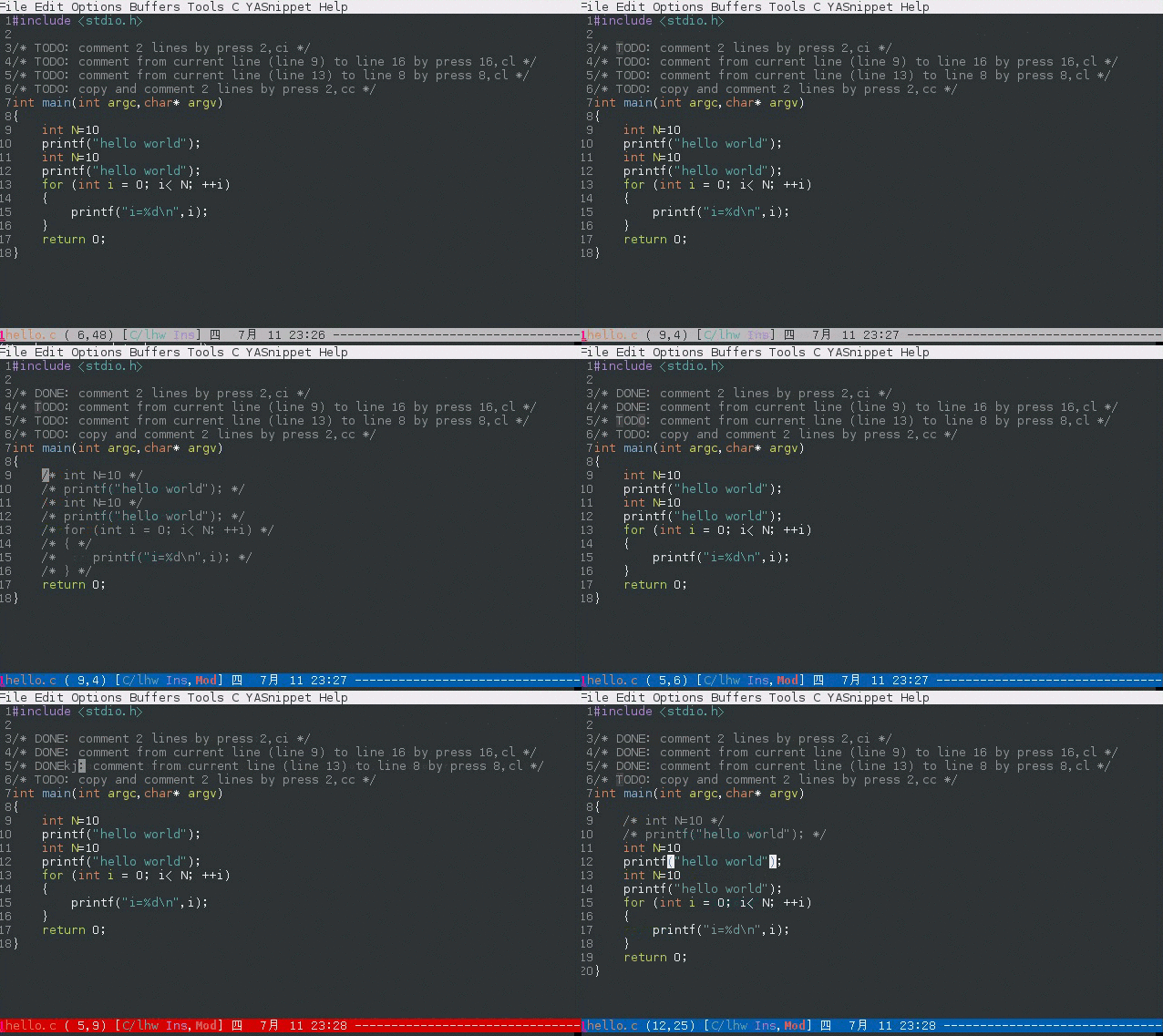
** Perfect integration with org-mode
The code snippet embedded in org file will automatically be detected and correct comment syntax will be used!
- Install
evil-nerd-commenter is already uploaded to [[http://melpa.org]]. The best way to install is Emacs package manager. - Setup
Please note NO key bindings are setup automatically. You need use following ways to setup key bindings.
Please note v3.2.1 is the last version supporting Emacs 24.3.
** Use recommended key bindings
Insert =(evilnc-default-hotkeys)= into =~/.emacs= to use key bindings preset for both evil and non-evil mode. This is recommended way.
Use =(evilnc-default-hotkeys t)= to use key binding only for non-evil mode if you want to define key bindings in evil-mode by yourself.
Use =(evilnc-default-hotkeys nil t)= to use key binding only for evil mode if you want to define key bindings in Emacs mode by yourself.
** Use evil-leader instead
Install [https://github.com/cofi/evil-leader].
Insert following code into you =~/.emacs=,
+BEGIN_SRC elisp
;; Emacs key bindings
(global-set-key (kbd "M-;") 'evilnc-comment-or-uncomment-lines)
(global-set-key (kbd "C-c l") 'evilnc-quick-comment-or-uncomment-to-the-line)
(global-set-key (kbd "C-c c") 'evilnc-copy-and-comment-lines)
(global-set-key (kbd "C-c p") 'evilnc-comment-or-uncomment-paragraphs)
;; Vim key bindings
(require 'evil-leader)
(global-evil-leader-mode)
(evil-leader/set-key
"ci" 'evilnc-comment-or-uncomment-lines
"cl" 'evilnc-quick-comment-or-uncomment-to-the-line
"ll" 'evilnc-quick-comment-or-uncomment-to-the-line
"cc" 'evilnc-copy-and-comment-lines
"cp" 'evilnc-comment-or-uncomment-paragraphs
"cr" 'comment-or-uncomment-region
"cv" 'evilnc-toggle-invert-comment-line-by-line
"." 'evilnc-copy-and-comment-operator
"\" 'evilnc-comment-operator ; if you prefer backslash key
)
+END_SRC
** Assign key bindings manually
Manual setup is necessary for certain major modes (matlab-mode, for example)
Here is the minimum setup,
+begin_src elisp
(defun matlab-mode-hook-config ()
(local-set-key (kbd "M-;") 'evilnc-comment-or-uncomment-lines))
(add-hook 'matlab-mode-hook 'matlab-mode-hook-config)
+end_src
- Usage
** Available commands and hotkeys
Here are available commands which are NOT dependent on [http://emacswiki.org/emacs/Evil]:
* evilnc-comment-or-uncomment-lines (RECOMMENDED)
Comment/uncomment lines. This command supports negative arguments.
The hotkey is ",cl" in evil-mode and "M-;" in all modes. "M" means ALT key.
If a region selected, the region is expand to make sure the region contain
whole lines. Then we comment/uncomment the expanded region. NUM is ignored.
If the region is inside of ONE line, we comment/uncomment that region. In this case, CORRECT comment syntax will be used for C++/Java/Javascript.
This may be the only command you need to learn!
* evilnc-quick-comment-or-uncomment-to-the-line
comment/uncomment from current line to the user-specified line. You can input the rightest digit(s) to specify the line number if you want to type less.
For example, say current line number is 497. =C-u 3 M-x evilnc-quick-comment-or-uncomment-to-the-line= will comment to the line 503 because the rightest digit of "503" is 3.
The hotkey is ",cl" or ",ll" in evil-mode and =C-c l= (C means Ctrl key) in emacs normal mode.
* evilnc-comment-or-uncomment-paragraphs
comment/uncomment paragraphs which is separated by empty lines.
* evilnc-copy-and-comment-lines
Copy and paste lines, then comment out original lines. This command supports negative arguments.
The hotkey is ",cc" in evil-mode and =C-c c= in emacs normal mode.
* evilnc-comment-and-kill-ring-save
Comment lines and insert original lines into =kill-ring=.
* evilnc-comment-or-uncomment-to-the-line
Comment to the specified line.
* evilnc-comment-or-uncomment-html-tag
Comment or uncomment current html tag or selected region.
It supports html and jsx without any set up. It's not dependent on any third party package.
Please note you don't need force the whole line selection (pressing =V=) in =evil-mode=. This command is smart to select whole lines if needed.
Comment or uncomment html tag(s).
If no region is selected, current tag under focus is automatically selected.
In this case, only one tag is selected.
If user manually selects region, the region could cross multiple sibling tags and automatically expands to include complete tags. So user only need press =v= key in =evil-mode= to select multiple tags.
Or you can use =evilnc-comment-or-uncomment-html-paragraphs= to comment/uncomment paragraphs containing html tags.
Paragraph is text separated by empty lines.
Sample to combine =evilnc-comment-or-uncomment-html-paragraphs= and =evilnc-comment-or-uncomment-paragraphs=:
+begin_src elisp
(defun my-current-line-html-p (paragraph-region)
(let* ((line (buffer-substring-no-properties (line-beginning-position)
                                           (line-end-position)))
     (re (format "^[ \t]*\\(%s\\)?[ \t]*</?[a-zA-Z]+"
                 (regexp-quote (evilnc-html-comment-start)))))
;; current paragraph does contain html tag
(if (and (>= (point) (car paragraph-region))
         (string-match-p re line))
    t)))
(defun my-evilnc-comment-or-uncomment-paragraphs (&optional num)
"Comment or uncomment NUM paragraphs which might contain html tags."
(interactive "p")
(unless (featurep 'evil-nerd-commenter) (require 'evil-nerd-commenter))
(let* ((paragraph-region (evilnc--get-one-paragraph-region))
     (html-p (or (save-excursion
                   (sgml-skip-tag-backward 1)
                   (my-current-line-html-p paragraph-region))
                 (save-excursion
                   (sgml-skip-tag-forward 1)
                   (my-current-line-html-p paragraph-region)))))
(if html-p (evilnc-comment-or-uncomment-html-paragraphs num)
  (evilnc-comment-or-uncomment-paragraphs num))))
+end_src
* evilnc-toggle-comment-empty-lines
Toggle the flag to comment/uncomment empty lines.
The hotkey is ",cv" in evil-mode.
* evilnc-copy-to-line
Copy from the current line to the user-specified line.
It's for non-evil user only.
You need assign hotkey for it.
For example:
+BEGIN_SRC elisp
(global-set-key (kbd "C-c C-t C-l") 'evilnc-copy-to-line)
+END_SRC
* evilnc-toggle-invert-comment-line-by-line
Toggle flag =evilnc-invert-comment-line-by-line=.
When the flag is true, the command =evilnc-comment-or-uncomment-lines=, =evilnc-comment-or-uncomment-to-the-line=, and =evilnc-comment-or-uncomment-paragraphs= will be influenced. They will invert each line's comment status instead comment the whole thing.
Please note this command may NOT work on complex evil text object.
* evilnc-kill-to-line
Kill from the current line to the user-specified line.
It's for non-evil user only.
You need assign hotkey for it.
For example:
+BEGIN_SRC elisp
(global-set-key (kbd "C-c C-t C-l") 'evilnc-kill-to-line)
+END_SRC
* evilnc-comment-both-snippet-html
If a line is snippet wrapped HTML tags in HTML template, only the HTML syntax is used to comment out the line by default.
But if you =(setq evilnc-comment-both-snippet-html t)=, snippet will be commented out with its own syntax at first. Then the wrapped html tag will be comment out using HTML syntax. This flag has effect on all above commands. [http://web-mode.org/] should be enabled to use this flag.
* Use imenu to list and jump to comments in current file
Please setup imenu-create-index-function' to evilnc-imenu-create-index-function'.
Setup on using =counsel-imenu= to list comments in current buffer,
+begin_src elisp
(defun counsel-imenu-comments ()
(interactive)
(let* ((imenu-create-index-function 'evilnc-imenu-create-index-function))
(unless (featurep 'counsel) (require 'counsel))
(counsel-imenu)))
+end_src
** Examples
* Comment lines
=C-u NUM M-x evilnc-comment-or-uncomment-lines=, comment/uncomment next NUM lines.
* Comment region
Select a region and =M-x evilnc-comment-or-uncomment-lines=. The region will be automatically expanded to contain whole lines. Then we comment/uncomment the region.
* Comment to the line number
=C-u 56 M-x evilnc-comment-or-uncomment-to-the-line=, comment/uncomment from current line to line 56.
* Copy and comment
=C-u 2 M-x evilnc-copy-and-comment-lines=, copy 2 lines and paste them below the original line. Then comment out original lines. The focus will be moved to the new lines.
* Comment paragraph
=C-u 2 M-x evilnc-comment-or-uncomment-paragraphs=, comment out two paragraphs. This is useful if you have large hunk of data to be commented out as below:
+BEGIN_SRC javascript
var myJson={
"key1":"v1",
"key2":"v2",
"key3":"v3"
}
+END_SRC
* Invert comment
Say there are two lines of javascript code,
+BEGIN_SRC javascript
if(flag==true){ doSomething(); }
//if(flag==false){ doSomething(); }
+END_SRC
The first line is production code. The second line is your debug code. You want to invert the comment status of these two lines (for example, comment out first line and uncomment the second line) for debug purpose.
All you need to is =M-x evilnc-toggle-invert-comment-line-by-line= then =C-u 2 evilnc-comment-or-uncomment-lines=. The first command turn on some flag, so the behavior of (un)commenting is different.
- Evil usage
If you use [http://emacswiki.org/emacs/Evil], you can use [http://vimdoc.sourceforge.net/htmldoc/motion.html#text-objects]. But if you only deals with lines, I suggest using =evilnc-comment-or-uncomment-lines= instead.
** commenter text object "c"
We defined commenter text object "c" which can have multi-lines.
Press =vac= to select outer object (comment with limiters).
Press =vic= to select inner object (comment without limiter).
You can assign other key instead of "c" to the text object by customizing =evilnc-comment-text-object=.
** evilnc-comment-operator
=evilnc-comment-operator= acts much like the delete/change operator. Takes a motion or text object and comments it out, yanking its content in the process.
Example 1: ",,," to comment out the current line.
Example 2: ",,9j" to comment out the next 9 lines.
Example 3: ",,99G" to comment from the current line to line 99.
Example 4: ",,a(" to comment out the current s-expression, or ",,i(" to only comment out the s-expression's content. Similarly for blocks ",,a{", etc.
Example 5: ",,ao" to comment out the current symbol, or ",,aW" to comment out the current WORD. Could be useful when commenting out function parameters, for instance.
Example 6: ",,w" comment to the beginning of the next word, ",,e" to the end of the next word, ",,b" to the beginning of the previous word.
Example 7: ",,it", comment the region inside html tags (all html major modes are supported , including [http://web-mode.org/])
** evilnc-copy-and-comment-operator
=evilnc-copy-and-comment-operator= is another evil-mode operator. Instead of commenting out the text in the operator-range, it inserts an copy of the text in the range and comments out that copy. Its hot key is ",.". For example, ",.," to comment out the current line.
- Tips
** Yank in evil-mode
You can yank to line 99 using hotkey =y99G= or =y99gg=. That's the feature from evil-mode.
Please read vim manual on "text objects and motions".
** Change comment style
For example, if you prefer double slashes =//= instead of slash-stars =/ ... /= in =c-mode=, insert below code into your =~/.emacs=:
+BEGIN_SRC elisp
(add-hook 'c-mode-common-hook
(lambda ()
;; Preferred comment style
(setq comment-start "// "
      comment-end "")))
+END_SRC
Thanks for [https://github.com/mcandre] providing this tip.
** Comment code snippet
Please install [https://github.com/redguardtoo/evil-matchit]. You can press =vi=%= to select a region between tags and press =M-;= to comment the region.
Most popular programming languages are supported.
** Comment and uncomment Lisp code
- Make sure Evil installed
- Press ",,a("
** Choose the style of copy and comment
You can set up =evilnc-original-above-comment-when-copy-and-comment= to decide which style to use when =evilnc-copy-and-comment-lines= or =evilnc-copy-and-comment-operator=,
- Place the commented out text above original text
- Or place the original text above commented out text
- Credits
- [https://github.com/lalopmak] added the support for text-object in Evil
- [https://github.com/ryuslash] provided the fix to make Emacs 24.4 work
- [https://github.com/TheBB] fixed the web-mode issue #45
- [https://github.com/Dickby] provided =evilnc-copy-and-comment-operator=
- Contact me
Report bug at [[https://github.com/redguardtoo/evil-nerd-commenter]].