Ⅰ. 插件描述
A tool to simplify importing JS modulesⅡ. 基本信息
|
Ⅲ. 安装方法
使用Vundle管理器安装
在你的.vimrc下添加:Plugin 'trotzig/import-js':source %
:PluginInstall对于Vundle版本 < 0.10.2,请用上面的Bundle替换Plugin。
使用NeoBundle管理器安装
在你的.vimrc下添加:NeoBundle 'trotzig/import-js':source %
:NeoBundleInstall使用VimPlug管理器安装
在你的.vimrc下添加:Plug 'trotzig/import-js':source %
:PlugInstall使用Pathogen管理器安装
在终端中运行以下命令:cd ~/.vim/bundle
git clone https://github.com/trotzig/import-jsⅣ. 文档说明



ImportJS is a tool to automatically import dependencies in your JavaScript
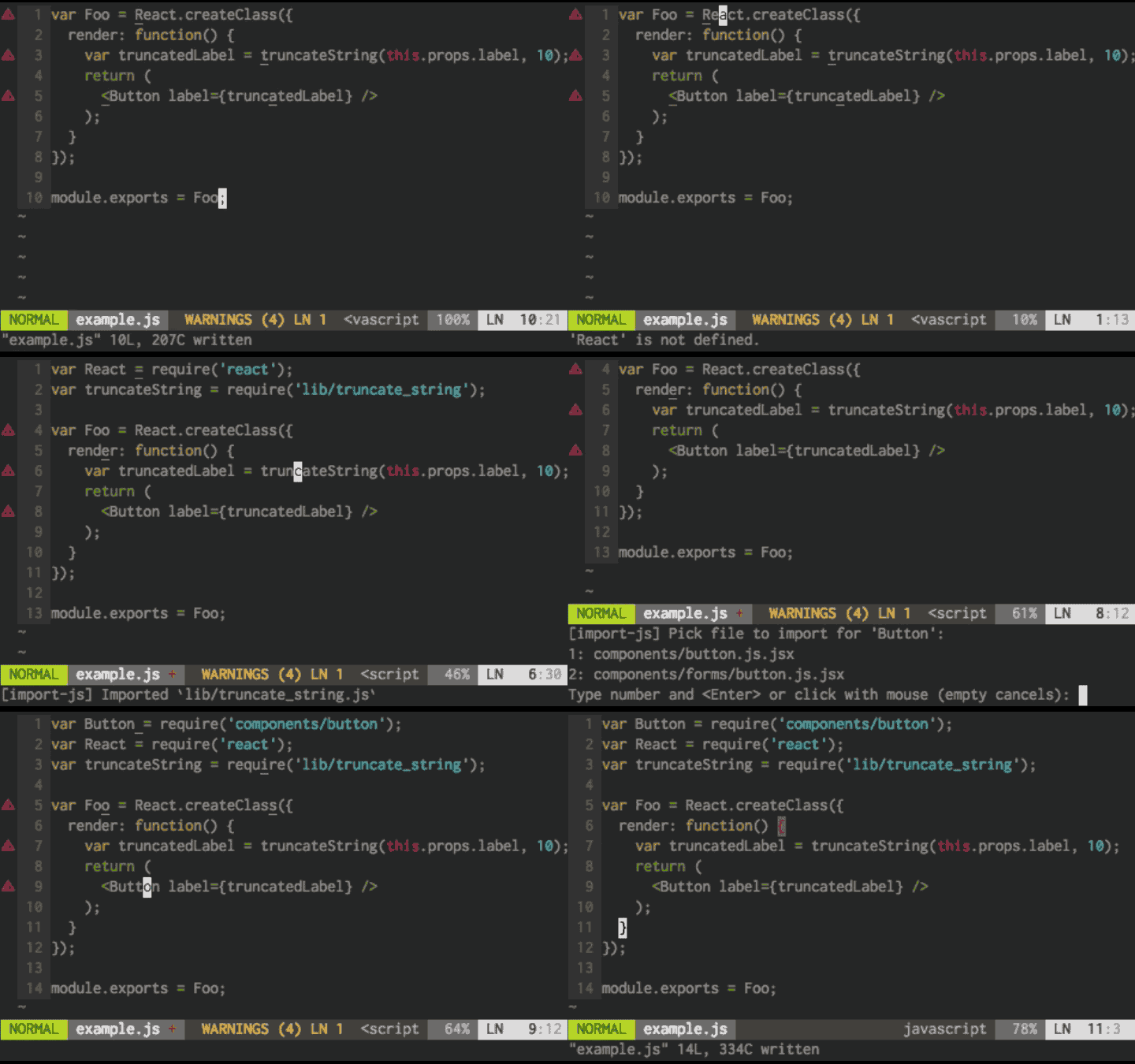
Editor support
There are ImportJS plugins for the following editors:
Detailed instructions on how to install ImportJS can be found in the editor
links above.
Want to add another editor to the list? [See how to
contribute](CONTRIBUTING.md).
Dependency on Babel 7
ImportJS uses Babel 7 from version 3.1.0. In most cases, Babel 7 is backwards-compatible with Babel 6, but if you run into issues (such as this one about decorators), consider installing a previous version of ImportJS (e.g. 3.0.0) or updating your project to be Babel 7 compatible.
Importing: Example
Let's say that you have a JavaScript project with the following structure:
.
|-- index.html
|-- components
|     |-- button.js
|     |-- icon.js
|-- vendor
|     |--
|-- pages
|     |-- index.js
Now, imagine that you're editing pages/index.js which contains:
document.createElement(new Button({ text: 'Save' }).toDOMElement());At this point, Button is undefined, so we need to import it. If you are used
to doing this manually, this involves figuring out the path to the JavaScript
module that defines Button. With ImportJS you instead place your cursor on
the word "Button", then hit <leader>j (Vim), (M-x) import-js-import (Emacs),
or choose "ImportJS: import word under cursor" (Sublime). The file buffer will
now change to the following:
import Button from '../components/button';

document.createElement(new Button({ text: 'Save' }).toDOMElement());
That's basically it. ImportJS will help you find modules and automatically addimport statements. But, keep reading for more neat features.
Fix imports
ImportJS can be used to automatically fix all imports in the current file. By
hitting <leader>i (Vim), (M-x) import-js-fix (Emacs), or choose `ImportJS:
fix all imports` (Sublime), all your undefined variables will be resolved, and
all your unused imports will be removed.
If you're using JSX, ImportJS will automatically import React for you.
Go to module
Since ImportJS is pretty good at finding JS modules, it makes sense that
there's an option to open/go to a file rather than import it. This is similar
to Vim's built in "Open file under cursor". Use it by placing
the cursor on a variable and hit <leader>g (Vim), (M-x) import-js-goto
(Emacs), or choose "ImportJS: goto module" (Sublime).
Things to note
- Only files ending in
.js\*and.ts*are considered when importing As part of resolving imports, all imports will be sorted and placed into
- *Grouping and sorting can be disabled, see the
groupImportsandsortImportsconfiguration - Comments and whitespace will be preserved if these are both disabled.*
- *Grouping and sorting can be disabled, see the
- You can speed up ImportJS by installing
Watchman. See [Speeding it
up!](#speeding-it-up) for more information.
Configuration
ImportJS is configured through a JavaScript file (.importjs.js).
The file needs to export a single object containing you configuration settings, like the
example below.
module.exports = {
    excludes: [
        './react-components/**/test/**'
    ]
    // continue with the rest of your settings...
}
Save this file in the root folder of your project (e.g. where the package.json
file is found). You can also save it to the user home directory if you want to
share a global config between different projects.
The following configuration options are supported.
aliasesdeclarationKeywordenvironmentsexcludesglobalsgroupImportsignorePackagePrefixesimportDevDependenciesimportFunctionimportStatementFormatterlogLevelmaxLineLengthminimumVersionmoduleNameFormatternamedExportssortImportsstripFileExtensionsdanglingCommastabuseRelativePathsmergableOptions
excludes
Define a list of glob patterns that match files and directories that you don't
want to include for importing.
excludes: [
  './react-components/**/test/**',
]
aliases
Some variable names might not easily map to a file in the filesystem. For those,
you can add them to the aliases configuration.
aliases: {
  $: 'third-party-libs/jquery',
  _: 'third-party-libs/underscore',
}
Aliases can be made dynamic by using the {filename} string. This part of the
alias will be replaced by the name of the file you are currently editing.
e.g.
aliases: {
  styles: './{filename}.scss',
}
will for a file foo/bar.js result in
import styles from './bar.scss';environments
This list of environments controls what core modules are available when
importing, and what variables are considered global by default. The supported
values right now are
['meteor']- make the core modules for Meteor
available, and add a bunch of [meteor
globals](https://github.com/sindresorhus/globals/blob/38d9a0c/globals.json#L1116)
['node']- make all the core modules for Node
available, and add a bunch of [node
globals](https://github.com/sindresorhus/globals/blob/38d9a0c/globals.json#L848)
['browser']- add a bunch of [browser
globals](https://github.com/sindresorhus/globals/blob/38d9a0c/globals.json#L162)['jasmine']- add a bunch of [jasmine
globals](https://github.com/sindresorhus/globals/blob/38d9a0c/globals.json#L901)['jest']- add a bunch of [jest
globals](https://github.com/sindresorhus/globals/blob/38d9a0c/globals.json#L921)- a few more, as defined by https://github.com/sindresorhus/globals
environments: ['meteor', 'node']namedExports
*Note: Since 2.1.0 ImportJS finds your named exports automatically. Most
likely you don't need this option. If you end up having to use this
configuration anyway, there might be a bug in the exports-finding parts of
ImportJS. File an issue and
tell us about it!
If you have an ES6/ES2015 module that exports multiple things (named exports),
or a CommonJS module that exports an object with properties on it that you want
to destructure when importing, you can add those to a namedExports
configuration option.
namedExports: {
  underscore: [
    'omit',
    'debounce',
    'memoize'
  ],
  'lib/utils': [
    'escape',
    'hasKey',
  ],
}
Imports that use the import declaration keyword then use [named imports
syntax][]. e.g.
import { memoize } from 'underscore';

memoize(() => { foo() });
and imports that use const or var use [ES2015 Destructuring
Assigment][destructing assignment], e.g.
const { memoize } = require('underscore');

memoize(() => { foo() });
The key used to describe the named exports should be a valid import path. This
can be e.g. the name of a package found under node_modules, a path to a
module you created yourself, or a relative import path.
declarationKeyword
The default value for this property is import, making your import statements
use the [ES2015 modules syntax][]:
import Foo from 'foo';If you aren't ready for ES2015 yet, you have the option to use var or const
instead.
declarationKeyword: 'const'In such case, your import statements will look something like this:
var Foo = require('foo'); // "declarationKeyword": "var"
const Foo = require('foo'); // "declarationKeyword": "const"
globals
Provide a list of global identifiers used in the code. ImportJS will ignore
these when trying to import all undefined variables.
*Note: If you use the environments configuration option
correctly, you might not need to specify globals*.
groupImports
By default, ImportJS will put imports into groups:
- Core modules
- Package dependencies
- One or more groups with internal imports
You can turn off this behavior by setting groupImports to false. When
disabled, imports are listed alphabetically in one list.
groupImports: falsesortImports
By default, ImportJS will sort imports by the name or path of the imported module.
You can turn off this behavior by setting sortImports to false. When
disabled, existing imports are not rearranged, and new imports are always added above existing imports.
sortImports: falseemptyLineBetweenGroups
By default, ImportJS will insert empty line between import groups.
You can turn off this behavior by setting emptyLineBetweenGroups to false.
emptyLineBetweenGroups: falseimportDevDependencies
ImportJS will look for package dependencies listed in package.json when
- By default, only modules listed under
dependenciesandpeerDependencieswill be used. By settingimportDevDependenciesto
true, devDependencies will also be taken into account.
importDevDependencies: truedanglingCommas
By default, ImportJS will add trailing commas when constructing import statements with multiple named imports.
You can turn off this behavior by setting danglingCommas to false.
danglingCommas: falseimportFunction
*Note: this only applies if you are using var or const asdeclarationKeyword.*
The default value for this configuration option is "require", which is [the
standard CommonJS function name used for
importing](http://wiki.commonjs.org/wiki/Modules/1.1).
importFunction: 'myCustomRequireFunction'stripFileExtensions
An array that controls what file extensions are stripped out from the resulting
import statement. The default configuration strips out `[".js", ".jsx", ".ts",
".tsx"]. Set to an empty array []` to avoid stripping out extensions.
stripFileExtensions: ['.web.js', '.js']useRelativePaths
This option is enabled by default. When enabled, imports will be resolved
relative to the current file being edited.
import Foo from './foo';
import Bar from '../baz/bar';
You can disable this by setting it to false:
useRelativePaths: falsePackage dependencies (located in node_modules) will not be imported
relatively.
ignorePackagePrefixes
If you have package dependencies specified in package.json that are prefixed
with e.g. an organization name but want to be able to import these without the
package prefix, you can set the ignorePackagePrefixes configuration option.
ignorePackagePrefixes: ['my-company-']When package dependencies are matched, these prefixes will be ignored. As an
example, a variable named validator would match a package namedmy-company-validator.
minimumVersion
Setting minimumVersion will warn people who are running a version of
ImportJS that is older than what your .importjs.js configuration file
- If your plugin version is older than this value, you will be shown a
- that encourages you to upgrade your plugin.
minimumVersion: '1.0.0'maxLineLength
Defaults to 80. This setting controls when import statements are broken into
multiple lines.
maxLineLength: 70moduleNameFormatter
Use a function here to control how the resulting module name string will look
- It's useful if you for instance want to add a custom prefix to certain
- Apart from the standard
pathToCurrentFileandpathToImportedModule - passed in to all configuration functions, this method is also passed a
moduleName value, which in general is what you want to manipulate.
moduleNameFormatter({ moduleName, pathToCurrentFile }) {
 if (/-test/.test(pathToCurrentFile)) {
   // Import a mocked version in test files
   return `mocks/${moduleName}`;
 }

 if (moduleName.startsWith('foo')) {
   // Add a leading slash to foo imports
   return `/${moduleName}`;
 }

 // Fall back to the original specifier. It's important that this function
 // always returns a string.
 return moduleName;
},
importStatementFormatter
Use a function here to control how the resulting import statement will look
- This is useful if you for instance want to strip out trailing semicolons
(that ImportJS adds by default).
Note: this method should only be used in rare cases. There's a chance that
ImportJS won't be able to recognize the resulting import statement next time it
is about to import something.
importStatementFormatter({ importStatement }) {
  return importStatement.replace(/;$/, '');
},
tab
Defaults to two spaces (" "). This setting controls how indentation is
constructed when import statements are broken into multiple lines.
tab: '\t'logLevel
One of ["debug", "info", "warn", "error"]. This controls what ends up in the
- The default is
info.
logLevel: 'debug'The logfile is written to "importjs.log" in your operating system's default
directory for temporary files. You can get the path to the log file by runningimportjsd logpath.
mergableOptions
A dictionary of Options that be merged with defaults and values provided by an environment. This can be used to overwrite options provided by environments. Defaults to:
mergableOptions: {
  aliases: true,
  coreModules: true,
  namedExports: true,
  globals: true,
}
Note: the mergableOptions option will always be merged and will be ignored if
included in a user config.
To disable merging a particular option or set of options, set the key tofalse:
mergableOptions: {
  globals: false
}
For example, if you are using the meteor environment but want to explicitly
import modules which are provided as globals, you can use this setting to
overwrite the environment globals.
const globals = require('globals');
module.exports = {
  environments: ['meteor', 'node'],
  mergableOptions: {
    globals: false // Overwrite globals
  },
  globals: [
    // Add the globals you want back in
    ...Object.keys(globals.builtin), // include javascript builtins
    ...Object.keys(globals.node), // include node globals
    'Package', 'Npm' // Include meteor globals for `package.js` files
  ]
}
Dynamic configuration
Different sections of your application may have special importing needs. For
instance, your tests might need the 'const' declaration keyword, but the rest
of your application can use 'import'. To be able to target these special
cases, you can turn your configuration option into a function. When ImportJS
resolves a configuration option, it will check to see if a function is used. In
such case, the function is invoked with the following arguments:
pathToCurrentFile: (always available) A path to the file you are editing.pathToImportedModule(not available for some options) A path to the
file/module you are importing.
Here's an example of how to dynamically control the declarationKeyword
configuration option based on the file you are importing:
// .importjs.js
function isTestFile(path) {
  return path.endsWith('-test.js');
}

module.exports = {
  declarationKeyword({ pathToImportedModule }) {
    if (isTestFile(pathToImportedModule)) {
      return 'const';
    }
    return 'import';
  },
}
Here's a more elaborate example taking both pathToImportedModule andpathToCurrentFile into account:
module.exports = {
  useRelativePaths({ pathToImportedModule, pathToCurrentFile }) {
    if (pathToCurrentFile.endsWith('-mock.js')) {
      return false;
    }
    if (pathToImportedModule.endsWith('-test.js')) {
      return false;
    }
    return true;
  },
}
In order to use functions, you need to use the JavaScript configuration file
(.importjs.js).
Command-line tool
ImportJS comes with a handy command-line tool that can help you perform
importing outside of an editor. Under the hood, this is what most of the editor
integrations use.
⨠ importjs --help

  Usage: importjs [options] [command]


  Commands:

    word [options] <word> <pathToFile>
    search [options] <word> <pathToFile>
    fix [options] <pathToFile>
    rewrite [options] <pathToFile>
    add [options] <imports> <pathToFile>
    goto <word> <pathToFile>
    start [options]                       start a daemon
    cachepath                             show path to cache file
    logpath                               show path to log file

  Options:

    -h, --help     output usage information
    -V, --version  output the version number

  Examples:

    $ importjs word someModule path/to/file.js
    $ importjs search someModule* path/to/file.js
    $ importjs fix path/to/file.js
    $ importjs rewrite --overwrite path/to/file.js
    $ importjs add '{ "foo": "path/to/foo", "bar": "path/to/bar" }' path/to/file.js
    $ importjs goto someModule path/to/file.js
    $ importjs cachepath
    $ importjs logpath
    $ importjs start --parent-pid=12345
Batch-rewriting
If you want to change how imports are constructed in an existing project, you
can use the command-line tool in combination with find to batch-update a set
of files. E.g.
find ./app -name "**.js*" -exec importjs rewrite --overwrite {} \;Since the --overwrite flag makes ImportJS destructive (files are overwritten),
it's a good thing to double-check that the find command returns the right
files before adding the -exec part.
Specifying alternate package directory
ImportJS looks for the package.json file in the closest ancestor directory for the file you're editing to find node modules to import. However, sometimes it might pull dependencies from a directory further up the chain. For example, your directory structure might look like this:
.
|-- package.json
|-- components
|     |-- button.js
|     |-- icon.js
|-- node_modules
|     |-- react
|-- subpackage
|     |-- package.json
|     |-- components
|           |-- bulletin.js
If you were to use ImportJS on subpackage/components/bulletin.js which imports React, ImportJS would not know that react is a valid dependency.
To tell ImportJS to skip a directory and keep searching upwards to find the root package directory, specify "importjs": { "isRoot": false } in the package.json of the directory to ignore. In this case, you would want something like this:
{
  "name": "subpackage",
  ...
  "importjs": {
    "isRoot": false
  }
}
Running as a daemon
Note: This section is intended mostly for developers of editor plugins. If
you are using one of the standard editor plugins, you are most likely using the
daemon under the hood already.
You can run ImportJS in a background process and communicate with it usingstdin and stdout. This will make importing faster because we're not
spinning up a node environment on every invocation.
The daemon is started by running running importjsd. It accepts commands sent
via stdin. Each command is a (oneline) JSON string ending with a newline. The
command structure is basically the same as for the command-line tool, but
wrapped in JSON instead of expressed on the command line. Here are a few
examples:
Run fix imports:
{
  "command": "fix",
  "fileContent": "const foo = bar();\n",
  "pathToFile": "foo.js",
}
Import a single word:
{
  "command": "word",
  "commandArg": "bar",
  "fileContent": "const foo = bar();\n",
  "pathToFile": "foo.js",
}
Goto:
{
  "command": "goto",
  "commandArg": "bar",
  "fileContent": "const foo = bar();\n",
  "pathToFile": "foo.js",
}
Results are printed to stdout in JSON format. The response will look the same
as what the command-line tool produces. If an error occurs, it will also end up
in stdout as JSON (an object with an error key).
On startup, the daemon will print a path to a logfile. If you want to find out
what's going on behind the scenes, you can inspect this file. If you don't have
access to the console log of the daemon, you'll find the logfile inos.tmpdir() + '/importjs.log (which will resolve to something likevar/folders/1l/_t6tm7195nd53936tsvh2pcr0000gn/T/importjs.log on a Mac).
Speeding it up!
If you have a large application, traversing the file system to find modules can
be slow. That's why ImportJS has built-in integration with
Watchman, a fast and robust file
watching service developed by Facebook. All you have to do to get a performance
boost is to [install watchman
locally](https://facebook.github.io/watchman/docs/install.html), and make sure
to use an up-to-date editor plugin (Watchman is only used when ImportJS is run
as a daemon).
Contributing
See the CONTRIBUTING.md document for tips on how to run, test
and develop ImportJS locally.
Thank you:
- @janpaul123 for writing the Sublime plugin.
- @kevinkehl for getting the parentheses right for the Emacs plugin
- @rhettlivingston for making import-js work for Meteor, and for driving the
development forward by bringing in lots of experience and great ideas. - @dabbott for writing the VS Code plugin.
Happy hacking!