Ⅰ. 插件描述
Provides shortcut commands to hide or show GUI options and to set preset screen sizes.Ⅱ. 基本信息
|
Ⅲ. 安装方法
使用Vundle管理器安装
在你的.vimrc下添加:Plugin 'caglartoklu/screenspace-vim':source %
:PluginInstall对于Vundle版本 < 0.10.2,请用上面的Bundle替换Plugin。
使用NeoBundle管理器安装
在你的.vimrc下添加:NeoBundle 'caglartoklu/screenspace-vim':source %
:NeoBundleInstall使用VimPlug管理器安装
在你的.vimrc下添加:Plug 'caglartoklu/screenspace-vim':source %
:PlugInstall使用Pathogen管理器安装
在终端中运行以下命令:cd ~/.vim/bundle
git clone https://github.com/caglartoklu/screenspace.vimⅣ. 文档说明
# screenspace.vim
Provides shortcut commands to hide or show GUI options and to set preset screen sizes.
I really like to use all of my screen.
I also do like to take screenshots without visual clutter.
As always, Vim provides lots of options to fine tune the screen.
vim.org script page:
https://www.vim.org/scripts/script.php?script_id=5858
Installation
For Vundle users:
Plugin 'caglartoklu/screenspace.vim'For all other users, simply drop the screenspace.vim file to your plugin directory.
Usage
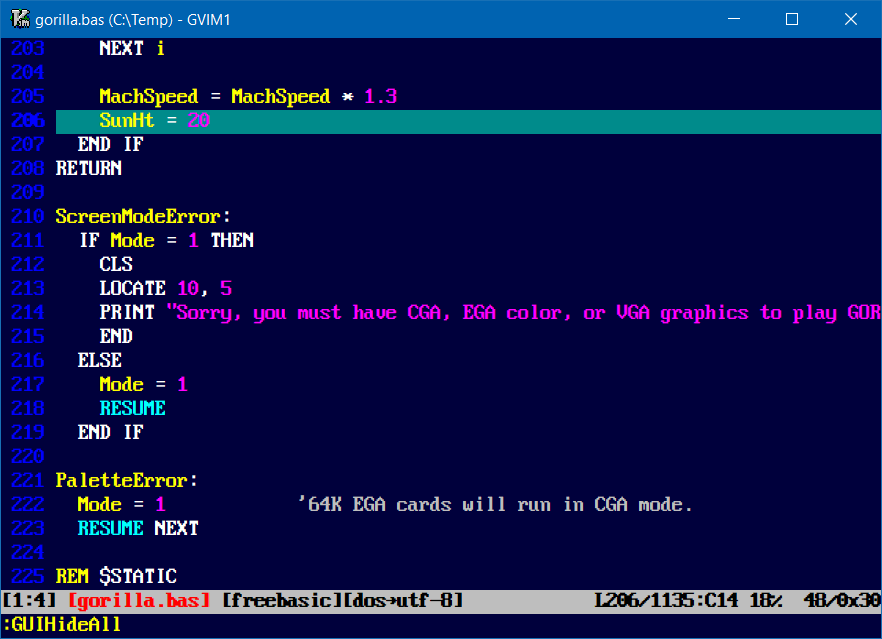
Hide all GUI options
GUIHideAll command
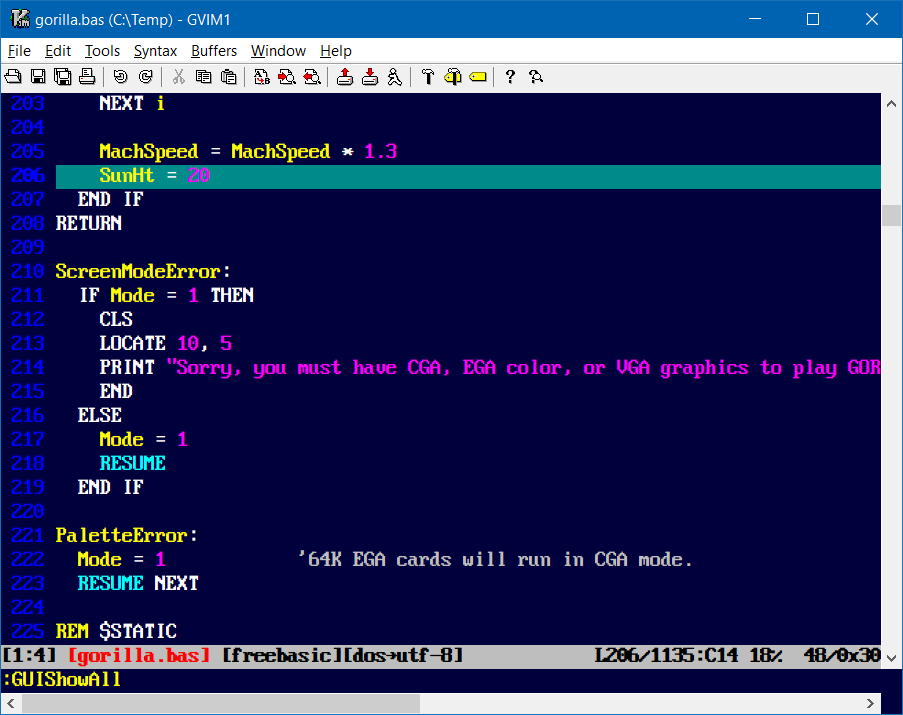
Show all GUI options
GUIShowAll command
Hide and show menu options
GUIShowMenu command
GUIHideMenu command
Size Commands
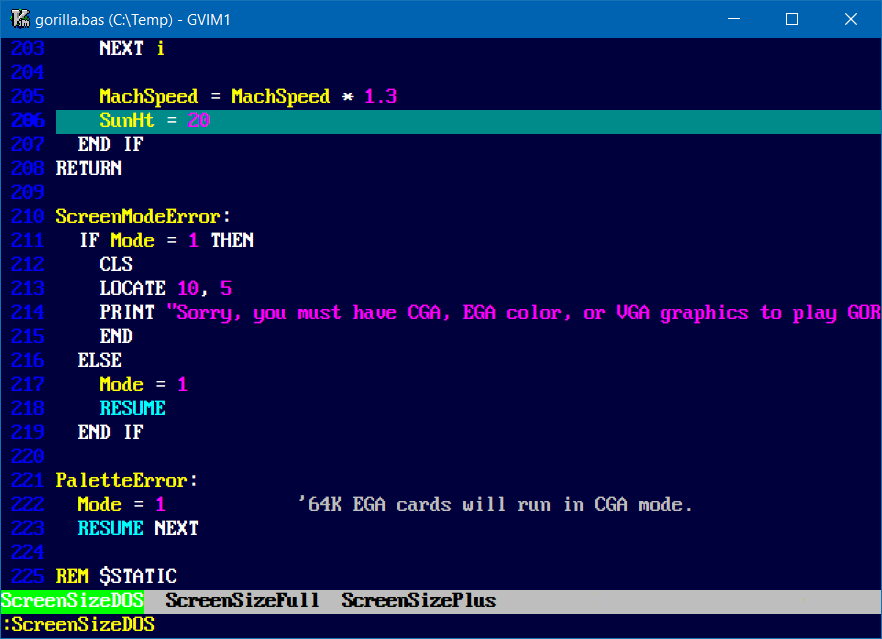
ScreenSizeDOS command
Sets the screen columns=80 and lines=25.
This is the screen size for DOS.
ScreenSizePlus command
Sets the screen columns=120 and lines=40.
ScreenSizeFull command
Sets the screen columns=9999 and lines=9999.
This will use most of the screen.
Calling screenspace.vim functions from VIMRC
It is possible to add an BufEnter auto command, but for performance reasons, I advice to add bare Vim options to VIMRC.
Bare options would be:
" set an initial screen size
set columns=120 lines=40

" hide everyting:
set guioptions=

" display options one by one:
set guioptions+=m  " menu
set guioptions+=T  " toolbar
set guioptions+=r  " right-hand scroll bar
set guioptions-=l  " left-hand scroll bar
set guioptions+=b  " horizontal scrollbar
http://vim.wikia.com/wiki/Hide_toolbar_or_menus_to_see_more_text
Options
None, currently.
See Also
It is worth checking the following plugins which are also related with screen size and visuals.
xolox/vim-shell
https://github.com/xolox/vim-shell
Improved integration between Vim and its environment (fullscreen, open URL, background command execution).
dreadnaut/vim-bargreybars
https://github.com/dreadnaut/vim-bargreybars
bargreybars.vim: remove gray bars from maximised gvim windows, on Windows
License
Licensed with 2-clause license ("Simplified BSD License" or "FreeBSD License"). See the LICENSE file.