Ⅰ. 插件描述
Vim plugin for contest programmingⅡ. 基本信息
|
Ⅲ. 安装方法
使用Vundle管理器安装
在你的.vimrc下添加:Plugin 'ex-surreal/vim-std-io':source %
:PluginInstall对于Vundle版本 < 0.10.2,请用上面的Bundle替换Plugin。
使用NeoBundle管理器安装
在你的.vimrc下添加:NeoBundle 'ex-surreal/vim-std-io':source %
:NeoBundleInstall使用VimPlug管理器安装
在你的.vimrc下添加:Plug 'ex-surreal/vim-std-io':source %
:PlugInstall使用Pathogen管理器安装
在终端中运行以下命令:cd ~/.vim/bundle
git clone https://github.com/ex-surreal/vim-std-ioⅣ. 文档说明
# vim-std-io
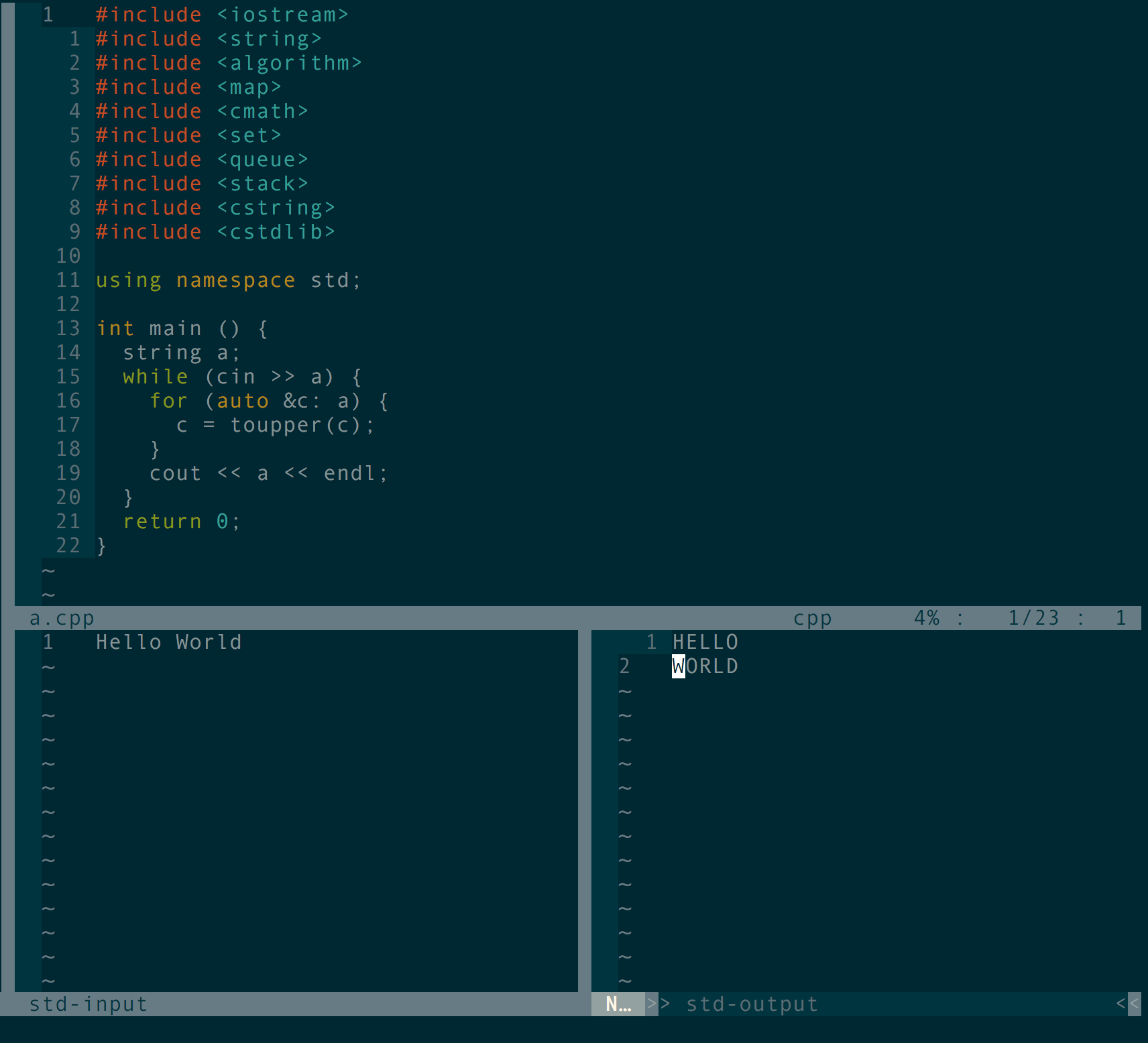
This is a vim plugin for running test cases for a single file which is very helpful for contest programming.
Installation
Manual installation will need to download /plugin/vim-std-io.vim and source it in your .vimrc
Best way to install is to use a plugin manager. I've used this with vim-plug and it works fine. Should work with other popular plugin managers as well.
For vim-plug, just add this line Plug 'ex-surreal/vim-std-io' and run :PlugInstall
Features
Basically what this plugin do is it will take test case from you in a buffer, run the current file for that case and show the output is another buffer in a clean layout. Also this plugin saves test cases, so you can navigate through history or run all the cases at once!
This plugin provides these commands
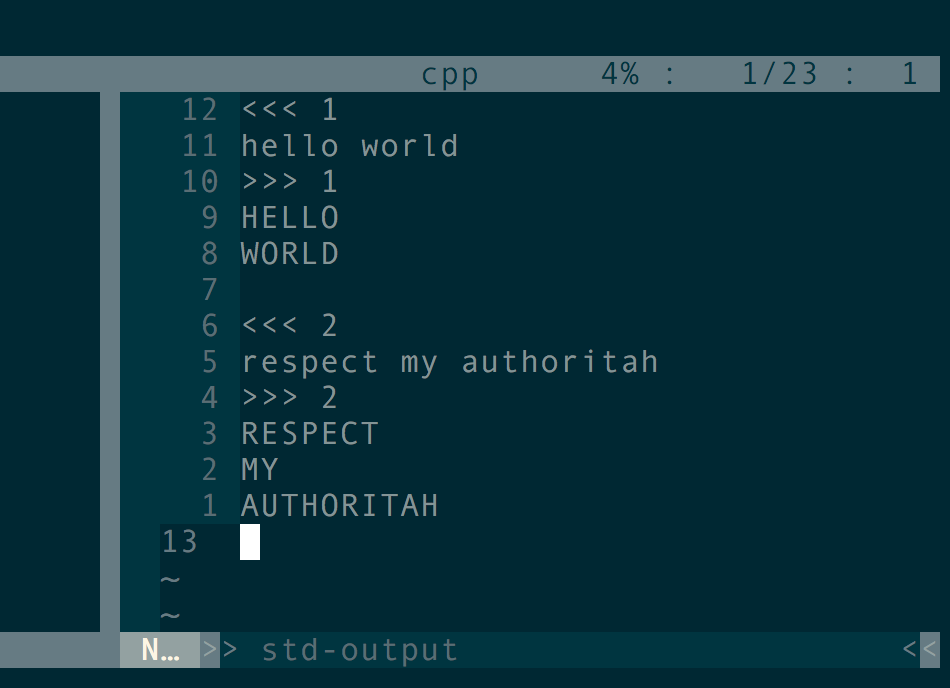
:IO(Takes one or zero argument) Opens up the i/o buffers if not already open and runs the target file with the latest test case (if any). You can then edit the test case and hit:IOagain to run the target file with the buffer content. If you hit:IO 1then the target file will be run even if input buffer is empty [helpful for checking Topcoder problems with moj or similar kind of plugins].:OICloses input and output buffer:GO(Takes one or zero argument). Shows the previous test case in input buffer, you can then check that test case. If integer argument given then history will be shifted by that argument. For example:GO 2will take you 2 cases forward in history and:GO -3will take you 3 cases backward in history.:IOIMagic! Runs all the test cases you've run previously! Output buffer looks like this:OP <filename>Creates a new file with <filename> with predefined template for that file type.:UT(Takes one or zero arguments) Opens the template in a new buffer to edit for given file type as argument (or current file type f not given).
Mappings
These mappings are by default in action. However, you can turn off these by putting let g:std_io_map_default = 0 before you load this plugin and set your own preferable mappings.
<leader>rruns:IOcommand<leader>erruns:IOIcommand<leader>trruns:IO 1command<leader>iselects input buffer<leader>oselects output buffer<leader>fselects solution's buffer<leader>qruns:OIcommand<leader>pruns:GOcommand<leader>nruns:GO 1<leader>]paste the clipboard content on input buffer [buffer local mapping]
Language Support
You can easily use this plugin for c++ or python. To set the command for any new language you must declare a dictionary. For example, if you just want to change the c++ standard to c++14 then you may put this before you load this plugin. let g:std_io_user_command = {'cpp': "'g++ -Wall --std=c++14 -o ' . expand('%:p:r') . '.o ' . expand('%:p') . ' && ' . expand('%:p:r') . '.o'"}.
If you wish to use any other language then you've to set the shell command to run for that language.
NOTE: This plugin will run the following vim command to generate the shell command for running the solution execute let shell_command_to_run = get(g:std_io_user_command, &filetype, ''). Then <<<'<input>' will be appended to shell_command_to_run.
Extras
You can also initialize the height of the i/o buffers by putting let g:std_io_window_height = 15 before you load this plugin.