Ⅰ. 插件描述
Ⅱ. 基本信息
|
Ⅲ. 安装方法
使用Vundle管理器安装
在你的.vimrc下添加:Plugin 'pelodelfuego/vim-swoop-speak-now':source %
:PluginInstall对于Vundle版本 < 0.10.2,请用上面的Bundle替换Plugin。
使用NeoBundle管理器安装
在你的.vimrc下添加:NeoBundle 'pelodelfuego/vim-swoop-speak-now':source %
:NeoBundleInstall使用VimPlug管理器安装
在你的.vimrc下添加:Plug 'pelodelfuego/vim-swoop-speak-now':source %
:PlugInstall使用Pathogen管理器安装
在终端中运行以下命令:cd ~/.vim/bundle
git clone https://github.com/pelodelfuego/vim-swoopⅣ. 文档说明
vim swoop
Vim swoop is directly inspired from helm-swoop we can find as emacs' plugin.
It allows you to find and replace occurrences in many buffers being aware of the context.
An animation means more than a boring speech...

You can edit the swoop buffer and the changes you applied will be save for all corresponding files by saving the buffer
Especially usefull to refactor a name in multiple files and keep control on it...
Usage
When you start vim-swoop (multi or single buffer mode) you get 2 windows.
First one contain context, the other is the swoop buffer. As you move the cursor to a match, the display windows will show the context.
From the swoop buffer, you can:
- Interactivly edit your search.
- Navigate in results (and context) by moving the cursor.
- Save Swoop buffer
:w.
The changes will be repercuted on all files by saving the swoop buffer - Select current result
<CR>.
Exit and Save Swoop and go to the location of current match - Quit Swoop
:q.
Exit Swoop without saving will abort modifications and bring you back to the initial buffer and position. - Toggle single and multi buffer mode.
single buffer mode
Start in insert mode, first line contains the search pattern.
As you type the pattern, results will interactivly be displayed bellow.
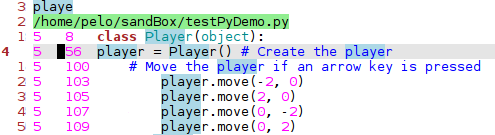
multi buffer mode
Start in insert mode, first line contains the buffer pattern, no pattern means all buffers.
Buffer will be displayed interactivly bellow:
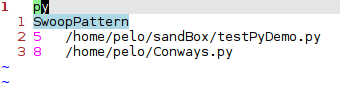
Second line contains the search pattern just like in single buffer mode:
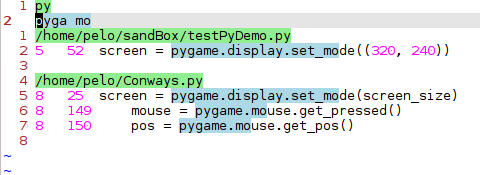
Interactions
KeyMap
Default mapping to use vim-swoop are:
- Swoop current buffer
nmap <Leader>l :call Swoop()<CR>
vmap <Leader>l :call SwoopSelection()<CR>- Swoop multi buffers
nmap <Leader>ml :call SwoopMulti()<CR>
vmap <Leader>ml :call SwoopMultiSelection()<CR>
NB: if you are in visual mode, you will land in normal mode
You can disabledefault mapping by:
let g:swoopUseDefaultKeyMap = 0Function
Those 2 action are also exposed by the following function:
- Current buffer function
:call SwoopPattern(pattern)- Multi buffer function
For all buffer
:call SwoopMultiPattern(searchPattern)For specific buffer
:call SwoopMultiPattern(searchPattern, bufPattern)Command
A third way to acces Swoop is by a direct command:
For single buffer mode
:Swoop <pattern>For all buffer mode
:Swoop! <pattern>Configuration
Behaviour
set search case insensitive
By default, smartcase is set, you can go to case insensitive search by:
let g:swoopIgnoreCase = 1Disable quick regex mode
By default, typing ```<Space>``` in the search pattern is replaced by ```.*```. And to type an actual space, you will need to escape it  ```\<Space>```.
You can get classic mode by:
let g:swoopPatternSpaceInsertsWildcard = 0Disable auto insert mode for normal mode
By default, you will start in insert mode, you can disable it by:
let g:swoopAutoInsertMode = 0User interface
Change default layout
By default, layout will be horizontal, you can set it vertical by:
let g:swoopWindowsVerticalLayout = 1Lazy Filetype Load
By default, filetype are lazy loaded when itering over multifile, you can disable this by:
let g:swoopLazyLoadFileType = 0Edit default HightLight
If default highlight is not relevant with your colorscheme, you can edit it by editing g:swoopHighlight variable, here is an example:
let g:swoopHighlight = ["hi! link SwoopBufferLineHi Warning", "hi! link SwoopPatternHi Error"]Default SwoopWindowSize
You can force default size for the swoop window with:
let g:defaultWinSwoopWidth = 12or:
let g:defaultWinSwoopHeight = 15Tips and Tricks
Toggle mode
You can toggle single and multi buffer mode, your Pattern will stay the same.
Calling again a mode while your already in will reset the search pattern.
Search in swoop buffer
Since the context display depends of the cursor movement, you can lauch a search inside the search buffer.Use VisualMode in the swoop buffer
When you use visual mode in the swoop buffer, the context will freeze if you select more than 2 lines.
But it is really usefull on refactoring session: you can keep only the lines you want to refactor and execute global replace.
Use last search
When you start swoop (either the mode) and don't enter any pattern, search result will be your last search.
Interaction with other plugin or option
The main issue you will have will be displaying the context, to have compatibility 2 functions are exposed:
call SwoopFreezeContext()call SwoopUnFreezeContext()If you need anything else to enchance compatibility with other plugin, please open an issue.
Installation and dependencies
Vim-Swoop is a pure vimscript plugin, no other dependancies.
Pathogen
git clone https://github.com/pelodelfuego/vim-swoop ~/.vim/bundle/vim-swoopVundle
Plugin 'pelodelfuego/vim-swoop'Credit
Special thanks to Shingo Fukuyama for his amazing idea which has juste been ported to vim.